

Responder Update Status
Responder Updates explains how you configure automatic updating. This page explains how to read the result: what AIR decided for a given asset, and why.
Two surfaces answer that question. The Version update card on the asset detail page gives the full explanation for one asset, and the Version column in the Assets list gives an at-a-glance view across all your assets.
The Version update card
Section titled “The Version update card”Open an asset and expand Version update. The card shows the fields relevant to the current state:
| Field | What it tells you |
|---|---|
| Current version | The Responder version installed on the asset |
| Target version | The version AIR wants the asset to reach |
| Automatic updates | Whether automatic updating is enabled globally, plus a shortcut to the settings page |
| Update policy | The policy governing this asset. If more than one policy matches, a +n badge lists the others. |
| Running-task policy | Whether an update waits for running tasks or stops them |
| Next attempt | When the next automatic attempt becomes possible |
| Attempts | The attempt count against the automatic attempt limit, for example Attempt 3 of 5 |
Beneath the fields, a short explanation names the current blocker, and the Update now and View update history actions let you act on it.
Selecting the policy name opens a preview of that policy, so you can check its schedule and reach without leaving the asset.
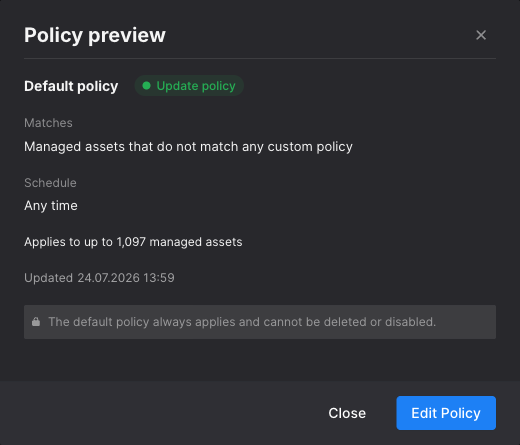
Responder Update Status: Policy preview opened from the Version update card
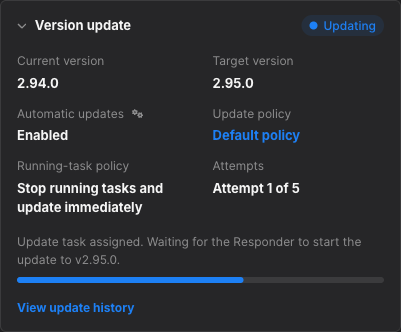
Responder Update Status: The Version update card while an update is being installed
Status reference
Section titled “Status reference”The card and the Assets list share the same nine statuses. AIR evaluates them in a fixed order and shows the first one that applies, so an asset always has exactly one status.
| Status | Meaning |
|---|---|
| Unsupported OS | Responder updates are not available for this operating system. Manual updates are unavailable too. |
| Updating | An update task is assigned, or the Responder is installing the update |
| Waiting | The asset is eligible, but something is deferring the update |
| Failed | The last attempt did not succeed |
| Scheduled | The update will start in the next configured update window |
| Excluded | The asset is excluded from automatic updates; manual updates are still possible |
| Update required | The Responder is older than a release Binalyze has marked as mandatory, and must be updated |
| Update available | A newer Responder version can be installed |
| Up to date | The asset runs the target version |
When an asset is up to date there is nothing to explain or act on, so the card stays collapsed to a single line.

Responder Update Status: An asset already running the target version
Every other status expands to show the versions, the governing policy, and the reason behind the current state.
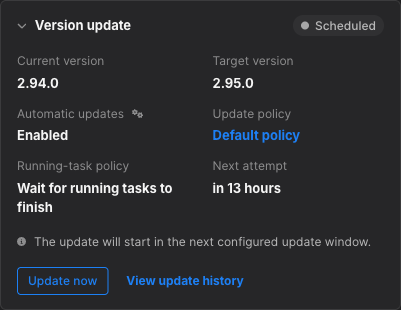
Responder Update Status: An asset scheduled for the next update window
When no automatic update is coming
Section titled “When no automatic update is coming”Three statuses mean the asset will not update on its own, so the card explains what to do instead.
Update available appears when a newer Responder version exists but automatic updating is switched off for the asset. Nothing happens until you install it manually.
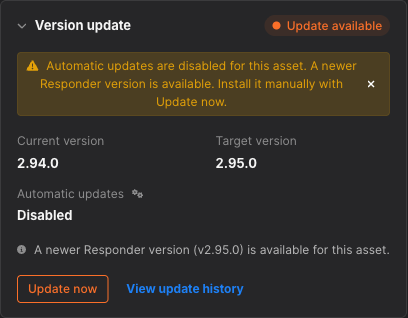
Responder Update Status: A newer version available while automatic updates are off
Update required is more urgent. The Responder is older than a release Binalyze has marked as mandatory, so it can no longer accept every kind of task. Update it as soon as you can.
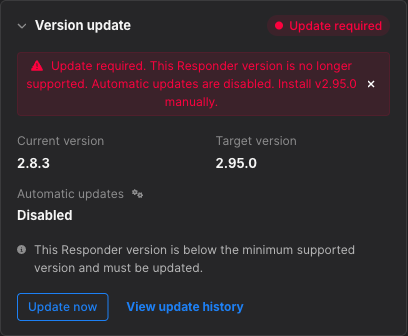
Responder Update Status: A Responder below the mandatory version
Unsupported OS means the operating system cannot receive Responder updates at all. Neither automatic nor manual updating is possible, so no Update now action is offered.
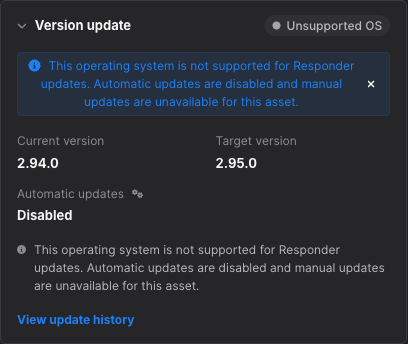
Responder Update Status: An operating system that cannot receive Responder updates
Why an update is waiting
Section titled “Why an update is waiting”Waiting always comes with a specific reason, so you can tell a temporary delay from a configuration problem:
| Reason shown | What to do |
|---|---|
| A task is currently running on the asset | Nothing. The update starts after the task finishes, if the update window is still open. |
| The asset is in maintenance mode | End Maintenance Mode when the work is complete. |
| The concurrent update limit has been reached | Nothing. The update starts when a slot becomes available. See Concurrent update limit. |
| The last attempt failed | Nothing. The next automatic attempt is shown under Next attempt. |
| The update will start in the next eligible update window | Widen the schedule on the governing policy if the window is too narrow. |
| The update will start when the asset next contacts AIR | Check that the asset is online and able to reach the Console. |
| Automatic updates are disabled | Use Update now, or switch the Console back to automatic updates. |
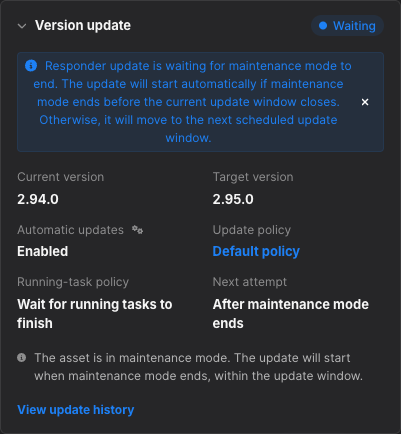
Responder Update Status: An update deferred because the asset is in maintenance mode
An asset that is eligible in every other respect still has to contact the Console before the update can be handed to it, so an offline asset waits without any configuration being at fault.
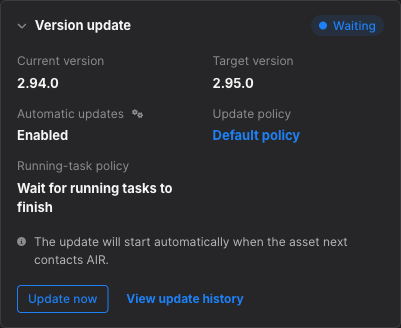
Responder Update Status: An update waiting for the asset to contact the Console
An excluded asset never retries automatically. When exclusion applies, the card says so instead of promising a retry.
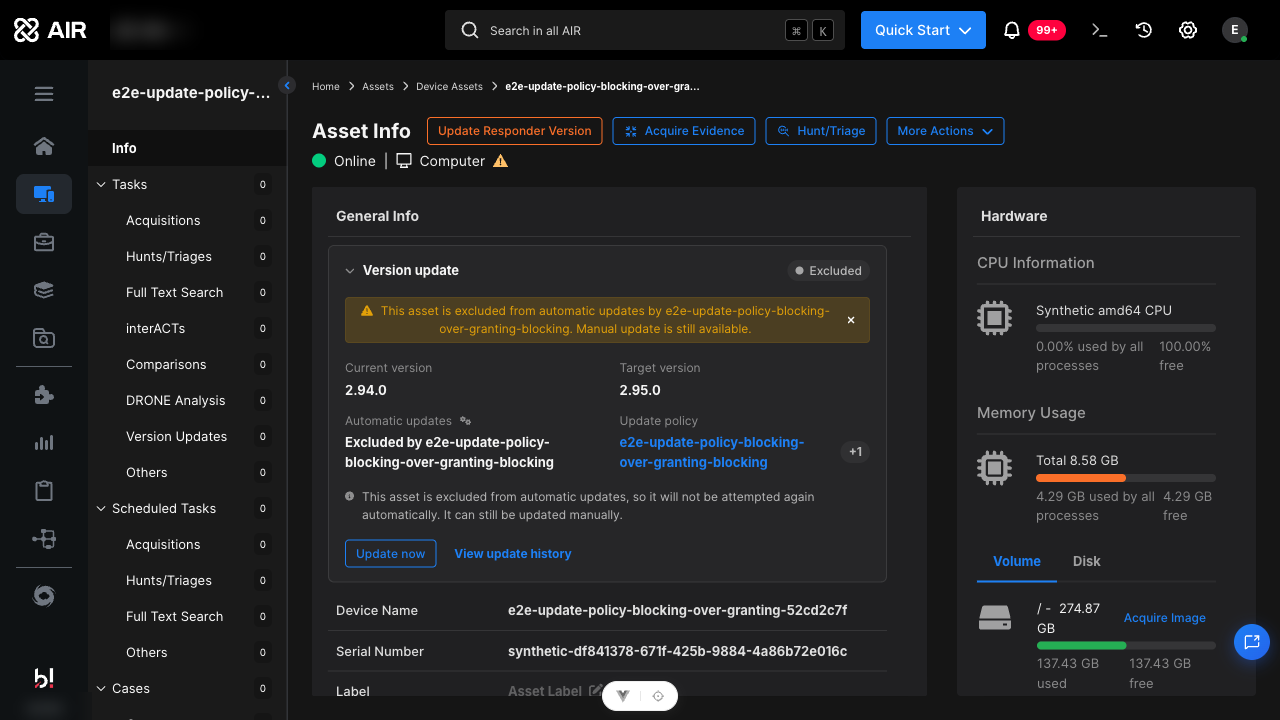
Responder Update Status: An asset excluded by policy, with manual update still offered
Update state in the Assets list
Section titled “Update state in the Assets list”In the Assets list, the Version column shows a coloured status dot next to the Responder version whenever an asset needs attention. Hovering the dot reveals the status, its reason, and the next attempt time where one applies. Assets that are up to date show no dot, so the column stays quiet until something needs looking at.
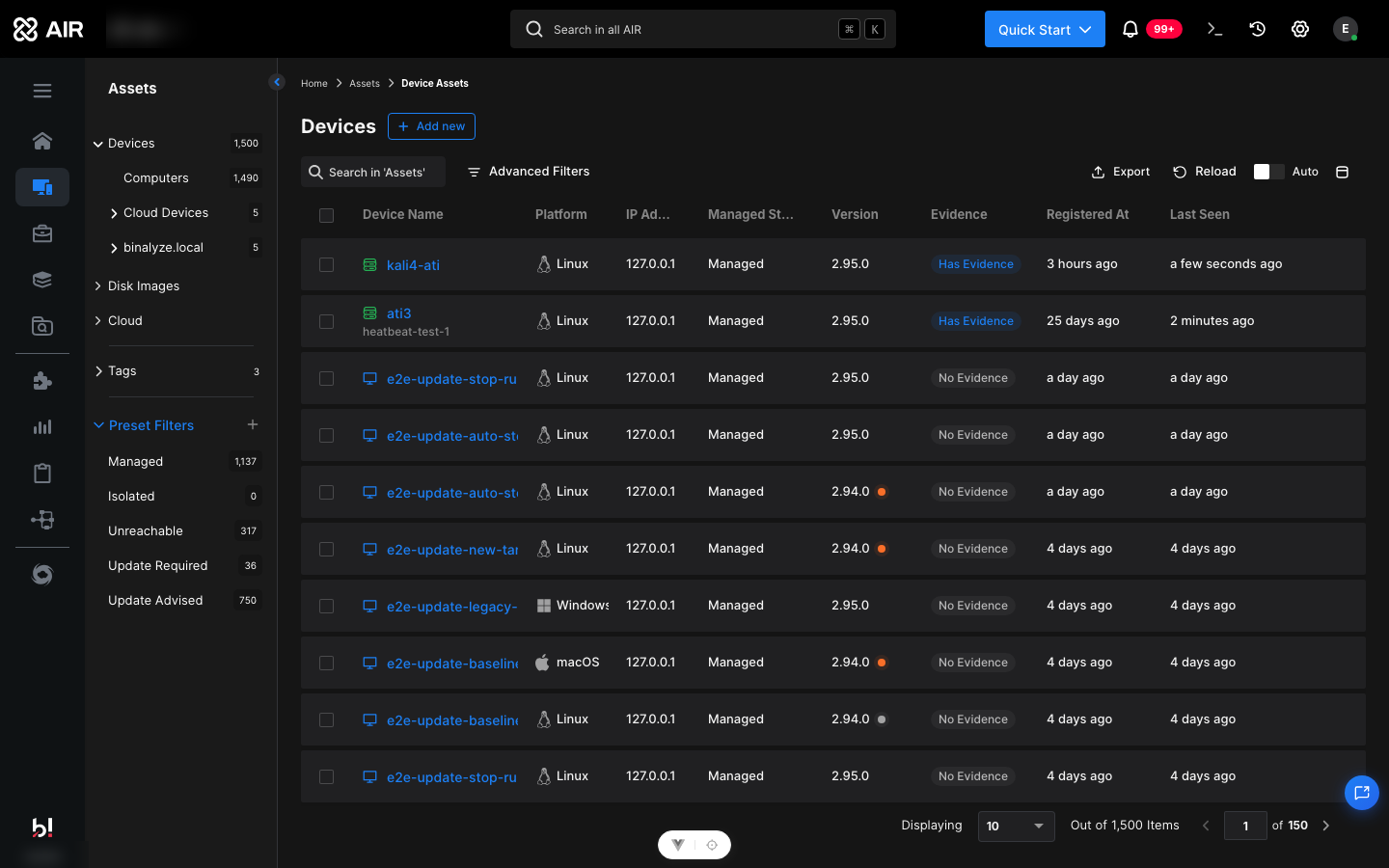
Responder Update Status: Status indicators beside the Responder version in the Assets list
To narrow the list down to a particular state, add a Version Status condition in Advanced Filters.
The Last Seen column continues to describe connectivity. Whether an asset is reachable and whether it is eligible to update are separate questions, and the Version update card is the place to answer the second one.
Retry behaviour and limits
Section titled “Retry behaviour and limits”When an automatic attempt fails, AIR retries with an increasing delay rather than immediately:
| Rule | Value |
|---|---|
| Automatic attempts per target version | 5 (the first attempt plus 4 retries) |
| Delay between retries | 15 minutes, then 1 hour, 4 hours, and 12 hours |
| Time allowed for a Responder to acknowledge an update | 1 hour, after which the attempt is closed as a dispatch timeout |
| Re-check interval while waiting for running tasks | 5 minutes |
Retries are still subject to the update window, so a retry that becomes due outside the window waits for the window to open. This means an attempt can land later than the interval alone suggests.
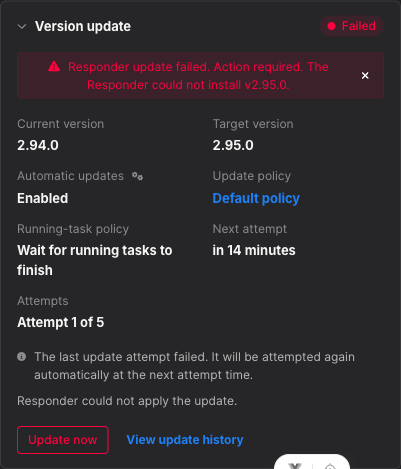
Responder Update Status: A failed attempt with the next retry time and attempt count
After 5 failed automatic attempts for the same target version, AIR stops retrying and shows Failed with an explanation. Automatic updating resumes when a new target version becomes available. To act sooner, use Update now, or investigate the failure first using Responder Update History.
Concurrent update limit
Section titled “Concurrent update limit”To protect your network and the Console, AIR updates a limited number of Responders at the same time. By default, up to 50 assets can be updating concurrently. Assets that become eligible while every slot is taken show Waiting and start as soon as a slot frees up, provided their update window is still open.
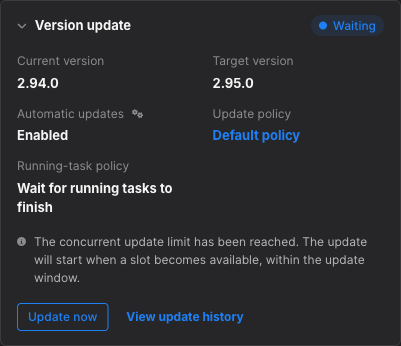
Responder Update Status: An asset waiting for a free update slot
Self-hosted administrators can change this limit with the AIR_MAX_CONCURRENT_VERSION_UPGRADE_LIMIT environment variable on the Console. Raising it speeds up large rollouts at the cost of more simultaneous package downloads; lowering it is useful on constrained links. On SaaS deployments the limit is managed by Binalyze.
Related articles
Section titled “Related articles”- Responder Updates — update modes, Default policy, custom policies, exclusions, precedence
- Responder Update History — past attempts and failure diagnosis
- How do I update Responders on assets? — assign immediate or scheduled update tasks
- Maintenance Mode — how maintenance defers automatic updates