

Workspace & Terminal
Overview
Section titled “Overview”Every Fleet session includes a workspace for file storage and an interactive terminal for direct command execution. Together, they give you full control over your analysis environment: upload evidence, browse generated outputs, download reports, and run commands alongside Fleet’s automated workflows.
Workspace
Section titled “Workspace”The workspace is a persistent file storage area associated with your Fleet session. It serves as the central location for all files involved in your analysis.
What Goes in the Workspace
Section titled “What Goes in the Workspace”- Uploaded files — any files you attach to your prompts (executables, documents, archives, PCAPs, event logs, detection rules, images, text files) are stored in the workspace.
- Analysis outputs — all files Fleet generates during analysis (reports, IOC tables, detection rules, STIX bundles, deobfuscated code, disassembly output) are saved to the workspace.
- Downloaded files — files downloaded through browser automation or web fetching are saved to the workspace.
- User-created files — any files you create through the terminal are stored in the workspace.
Organization
Section titled “Organization”Fleet organizes workspace files by date. Each day’s work is stored in a dated folder (e.g., 2026-03-19). Within each folder, files are named descriptively based on their content and the tool that produced them.
File Tree
Section titled “File Tree”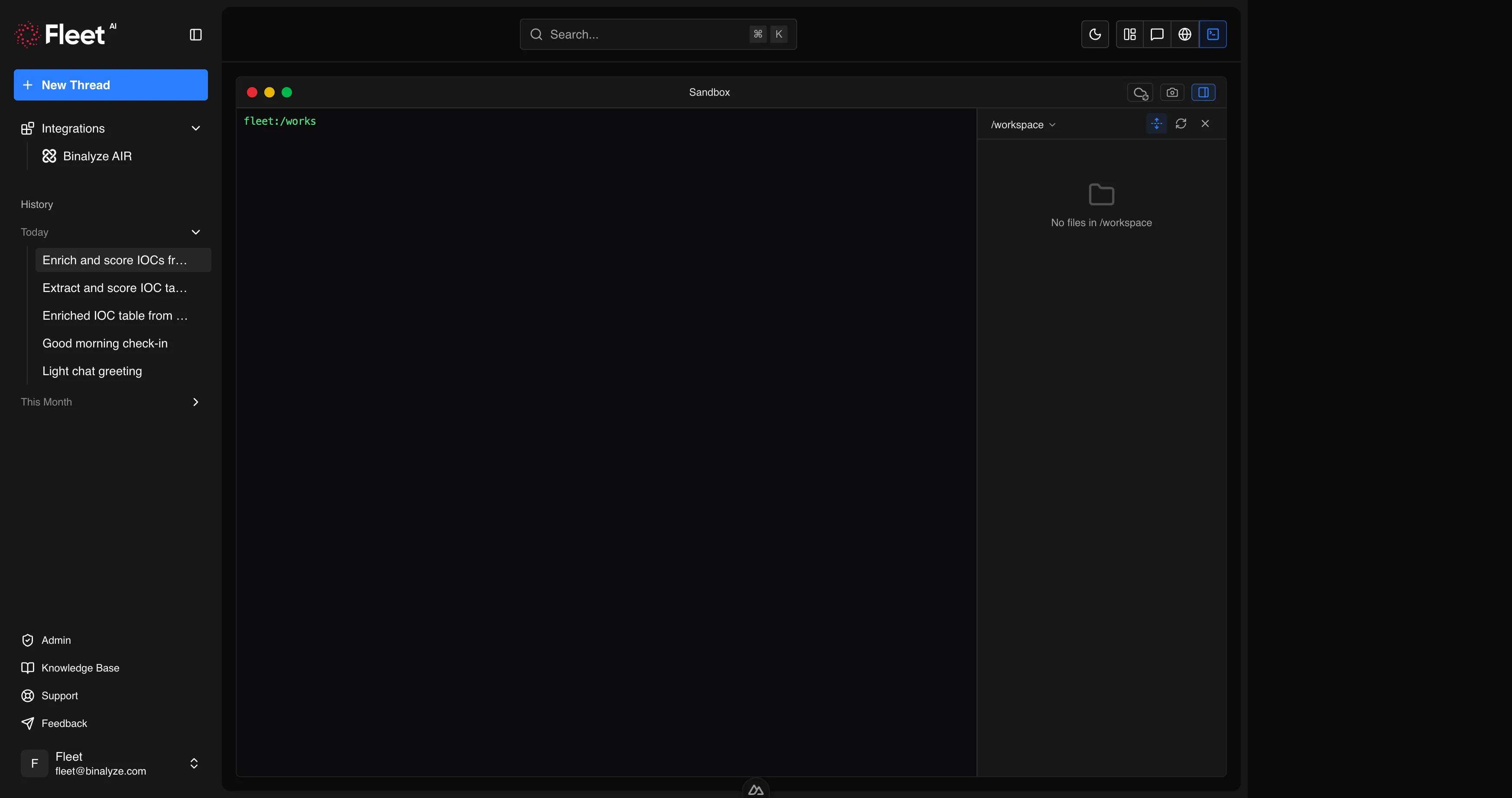
The workspace file tree is displayed in the sidebar of the Fleet interface. From the file tree, you can:
- Browse — navigate through folders and see all files in your workspace.
- Download — download any file to your local machine.
- Copy — copy files within the workspace.
- Move — move files between workspace folders.
- Delete — remove files you no longer need.
Uploading Files
Section titled “Uploading Files”You can upload files to Fleet in several ways:
- Drag and drop — drag files directly into the prompt input area.
- Attachment button — click the attachment button in the prompt bar to open a file picker.
- Quickstart samples — quickstart cards that include sample files automatically attach them when selected.
Fleet accepts any file type. There are no restrictions on file extensions. Common formats include:
| Category | Formats |
|---|---|
| Executables | PE (.exe, .dll), ELF, .NET assemblies, shellcode |
| Documents | PDF, Word (.doc, .docx, .docm), Excel, PowerPoint, RTF, OLE |
| Archives | ZIP, 7z, RAR, TAR, GZ (including password-protected) |
| Network captures | PCAP, PCAPNG |
| Event logs | EVTX, JSON, JSONL |
| Detection rules | YARA (.yar), Sigma (.yml), osquery (.sql), Suricata (.rules) |
| Images | PNG, JPG, GIF, BMP |
| Text | TXT, CSV, MD, JSON, XML, HTML |
Downloading Results
Section titled “Downloading Results”All analysis outputs are saved to the workspace automatically. To download results:
- Open the file tree in the sidebar.
- Navigate to the file you want.
- Click the download action.
Alternatively, ask Fleet to point you to specific output files, and it will provide the workspace path.
Terminal
Section titled “Terminal”The terminal provides an interactive shell session inside Fleet’s secure Linux environment. It gives you direct command-line access for manual analysis, file inspection, and custom workflows.
Accessing the Terminal
Section titled “Accessing the Terminal”The terminal is available from the Fleet interface. You can open multiple terminal tabs simultaneously, each running an independent shell session.
Environment
Section titled “Environment”The terminal runs in a full Linux environment with standard utilities available:
- File operations —
ls,cd,cp,mv,rm,find,tree - Text processing —
grep,awk,sed,sort,uniq,jq - Networking —
curl,wget,dig,nslookup,whois - Compression —
7z,zip,unzip,tar,gzip - Development —
python3,node,git,sqlite3 - Search —
ripgrep(rg) for fast text search
Use Cases
Section titled “Use Cases”- Manual file inspection — examine files that Fleet has analyzed, verify outputs, or inspect specific details.
- Custom scripting — write and run Python or Bash scripts for analysis tasks that require custom logic.
- Parallel work — run commands in the terminal while Fleet performs automated analysis in the chat.
- Ad-hoc queries — quickly check file hashes, inspect hex dumps, search for strings, or run one-off commands.
Relationship with Fleet
Section titled “Relationship with Fleet”The terminal and Fleet’s chat share the same workspace. Files created or modified in the terminal are visible to Fleet, and files generated by Fleet are accessible from the terminal. This allows you to seamlessly combine manual and AI-assisted analysis:
- Upload a file through the chat.
- Ask Fleet to perform initial triage.
- Open the terminal to manually inspect specific findings.
- Return to the chat to ask Fleet for deeper analysis based on what you found.
Limitations
Section titled “Limitations”- The workspace and terminal are scoped to the current session. Files do not persist across separate Fleet sessions.
- The terminal environment is Linux-based. Windows-specific commands are not available, but you can analyze Windows artifacts (PE files, EVTX logs, registry hives) using the available Linux tools.
- The environment does not have internet access from the terminal. All external access (web searches, threat intelligence lookups, URL fetching) is handled through Fleet’s secure gateway.