

AIR Integration
Overview
Section titled “Overview”Fleet integrates directly with AIR, enabling you to manage endpoints, collect evidence, deploy detection rules, execute remote commands, and browse investigation results without leaving the Fleet conversation. This turns Fleet into a force multiplier for your existing AIR deployment: you describe what you need in natural language, and Fleet translates that into the appropriate AIR operations.
All communication between Fleet and AIR passes through authenticated, encrypted API channels. Credentials are encrypted and handled by a secure gateway, never exposed to the AI agent.
Configuration
Section titled “Configuration”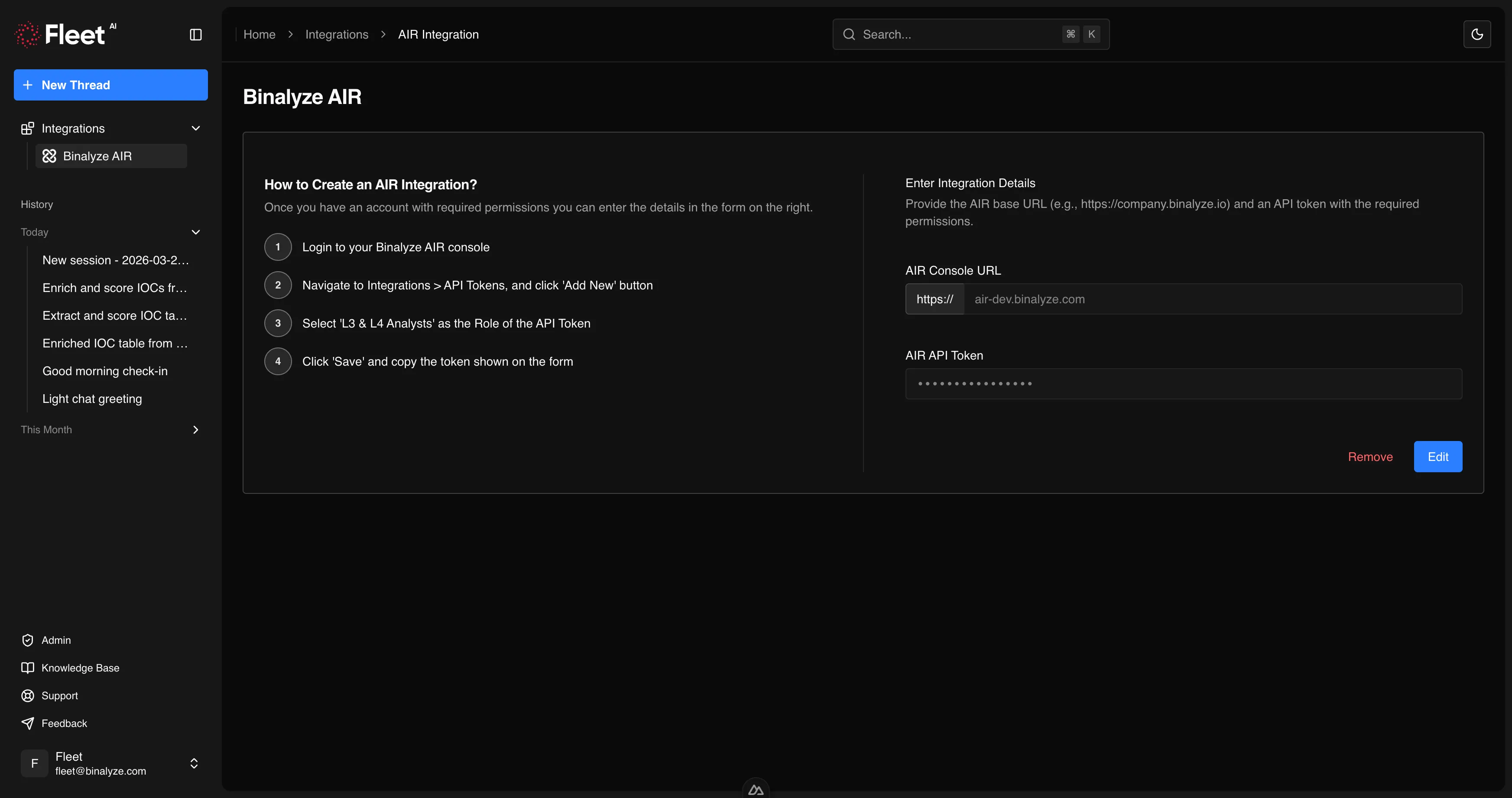
To enable Fleet’s AIR integration, you need to configure an API connection:
- Open Fleet and use the left sidebar.
- Select Integrations and open the AIR integration card.
- Provide your AIR API key.
- Fleet validates the connection and confirms access.
Once configured, Fleet can perform all supported AIR operations on your behalf. The API key is encrypted at rest and in transit, and is never visible to the AI agent.
Endpoint Management
Section titled “Endpoint Management”Fleet can list, search, and manage AIR endpoints directly from the conversation.
Listing and Searching Endpoints
Section titled “Listing and Searching Endpoints”Ask Fleet to find endpoints using any combination of criteria:
- Hostname — search by full or partial hostname
- IP address — search by IP address or subnet
- Tags — filter by assigned tags
- Operating system — filter by Windows, macOS, Linux, or ChromeOS
- Status — filter by managed, unmanaged, off-network, or isolated status
Example prompts:
List all Windows endpoints with the tag "finance-department".Show me all endpoints with IP addresses in the 10.0.1.0/24 range.Which endpoints are currently isolated?Endpoint Isolation
Section titled “Endpoint Isolation”Fleet can isolate endpoints from the network while maintaining AIR agent communication, and remove isolation when containment is no longer needed.
Example prompts:
Isolate the endpoint WORKSTATION-042 immediately.Remove isolation from WORKSTATION-042.Tagging
Section titled “Tagging”Fleet can apply and remove tags on endpoints for organization and filtering.
Example prompt:
Tag all endpoints in the 10.0.5.0/24 subnet with "incident-2024-003".Reboot
Section titled “Reboot”Fleet can trigger remote reboots on managed endpoints.
Example prompt:
Reboot the endpoint SERVER-DB-01.Case Management
Section titled “Case Management”Fleet can create and manage investigation cases in AIR.
Creating Cases
Section titled “Creating Cases”Fleet creates cases with the information you provide, including title, description, and initial endpoint assignments.
Example prompt:
Create a new case titled "Suspicious PowerShell Activity - Finance" and add endpoints WORKSTATION-042 and WORKSTATION-043.Managing Cases
Section titled “Managing Cases”Fleet can update case details, add or remove endpoints, and close cases when investigations are complete.
Example prompts:
Add endpoint SERVER-WEB-01 to case "Suspicious PowerShell Activity - Finance".Close case "Suspicious PowerShell Activity - Finance" with resolution: contained and remediated.Evidence Acquisition
Section titled “Evidence Acquisition”Fleet can trigger forensic evidence collection on AIR endpoints using acquisition profiles.
Triggering Acquisition
Section titled “Triggering Acquisition”Specify the endpoint and acquisition profile. Fleet initiates the collection and monitors progress.
Example prompts:
Acquire full evidence from WORKSTATION-042 using the default acquisition profile.Run the "Browser Artifacts" acquisition profile on all endpoints tagged "incident-2024-003".Monitoring Progress
Section titled “Monitoring Progress”Fleet tracks acquisition task status and notifies you when collection is complete or if issues arise.
Example prompt:
What is the status of the acquisition task on WORKSTATION-042?Triage
Section titled “Triage”Fleet can deploy detection rules to AIR endpoints for rapid threat hunting.
Deploying Rules
Section titled “Deploying Rules”Fleet can deploy YARA, Sigma, and osquery rules to endpoints. You can provide existing rules or ask Fleet to generate them first.
Example prompts:
Deploy this YARA rule to all Windows endpoints in the "finance-department" tag group.Generate a Sigma rule for detecting Mimikatz execution and deploy it to WORKSTATION-042.Scheduling Scans
Section titled “Scheduling Scans”Fleet can schedule triage scans for specific times or recurring intervals.
Example prompt:
Schedule a daily YARA scan using the "ransomware-indicators" rule on all servers.Reviewing Results
Section titled “Reviewing Results”Fleet can retrieve and summarize triage scan results, highlighting matches and providing context.
Example prompt:
Show me the triage results for the last scan on WORKSTATION-042.interACT
Section titled “interACT”Fleet can establish remote command sessions on managed AIR endpoints, execute commands, and transfer files.
Remote Command Execution
Section titled “Remote Command Execution”Fleet executes shell commands on endpoints through AIR’s interACT feature and returns the output.
Example prompts:
Run "netstat -an" on WORKSTATION-042 and show me any connections to external IPs.Check if the file C:\Windows\Temp\suspicious.exe exists on WORKSTATION-042.File Transfer
Section titled “File Transfer”Fleet can transfer files to and from endpoints through interACT.
Example prompts:
Download the file C:\Windows\Temp\suspicious.exe from WORKSTATION-042 for analysis.Upload the remediation script to WORKSTATION-042.Investigation Results
Section titled “Investigation Results”Fleet can browse and analyze evidence collected through AIR, including DRONE findings and Investigation Hub data.
Browsing Evidence
Section titled “Browsing Evidence”Fleet accesses collected evidence for specific cases and endpoints, providing summaries and enabling deeper analysis.
Example prompts:
Show me the DRONE findings for case "Suspicious PowerShell Activity - Finance".What evidence has been collected from WORKSTATION-042?Analyzing Findings
Section titled “Analyzing Findings”Fleet can analyze investigation results and provide context, recommendations, and next steps.
Example prompt:
Summarize the key findings from the Investigation Hub for case "Suspicious PowerShell Activity - Finance" and recommend next steps.Combining Fleet Analysis with AIR Operations
Section titled “Combining Fleet Analysis with AIR Operations”Fleet’s most powerful use case is combining its analysis capabilities with AIR operations in a single workflow. For example:
- Ask Fleet to triage an endpoint — Fleet connects to AIR, gathers endpoint information, and assesses the security posture.
- Fleet identifies suspicious activity — based on the triage, Fleet recommends acquiring specific evidence.
- Fleet triggers acquisition — evidence collection runs on the endpoint through AIR.
- Fleet analyzes the evidence — once collected, Fleet analyzes the artifacts using its forensic tools.
- Fleet generates detection rules — based on findings, Fleet creates YARA and Sigma rules.
- Fleet deploys rules organization-wide — the new rules are deployed to all relevant endpoints through AIR triage.
This end-to-end workflow happens within a single Fleet conversation, with each step building on the previous one.