

Task Cancellation and Deletion
Viewing and Managing Tasks
Section titled “Viewing and Managing Tasks”All tasks within AIR can be centrally managed at the organizational level from a dedicated Tasks page. This view is accessible from the Main Menu by selecting Tasks.
From this interface, users can:
- View a comprehensive list of all tasks associated with the currently selected organization.
- Filter and monitor tasks across their lifecycle, including those that are:
- Completed
- In progress
- Cancelled
- Failed
This consolidated view is essential for maintaining operational oversight and ensuring that investigation and response workflows are being executed as expected.
For each task, detailed information such as task type (e.g., acquisition, triage, timeline generation), status, and associated endpoints is available, allowing for granular tracking and auditability.
The blue ‘eye’ icon at the end of each task entry allows users to view detailed information about the task.
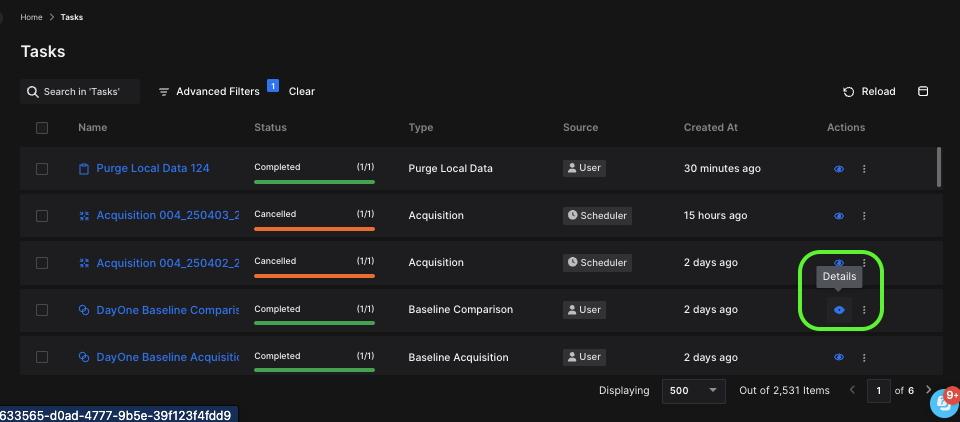
Task Cancellation and Deletion: Details icon
In the Task Details window, there are two tabs: Information and Assigned To. The Information tab displays details such as the creator of the task, the policy applied, the DRONE analyzers used, and the selected acquisition profile.
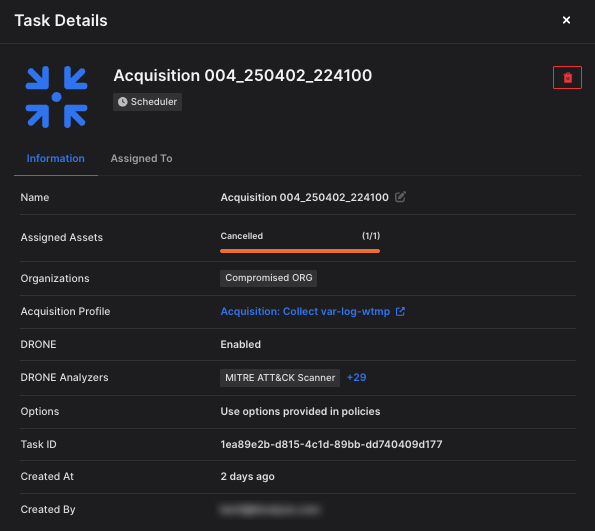
Task Cancellation and Deletion: Task Details
The Assigned To tab provides information about the assets to which the task has been assigned. For each asset, an Actions menu is available, enabling investigators to:
- Delete the task
- Purge local data from the endpoint
- Add the data to a case
- Note: Data can be added to multiple cases simultaneously
- Send the data to a timeline for correlation and analysis
- Use the collected data to perform a Compare task against other acquisitions
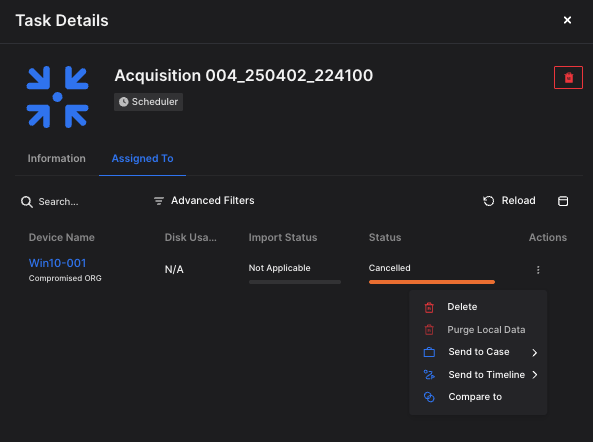
Task Cancellation and Deletion: Options avaiable under Actions
Bulk Task Cancellation and Deletion
Section titled “Bulk Task Cancellation and Deletion”Managing large volumes of tasks is now faster and more efficient with the introduction of Bulk Task Cancellation and Bulk Task Deletion capabilities.
Bulk Task Cancellation
Section titled “Bulk Task Cancellation”Users can now cancel one or more tasks directly from the Tasks view using the familiar bulk action toolbar. This is particularly useful for streamlining task management across environments with high automation or frequent testing.
Key features include:
- Full support for advanced filtering, allowing users to quickly identify tasks based on:
- Task type
- Task name
- Source
- Status
- As seen below, once tasks are selected, the bulk action bar automatically appears, displaying a task count (this count reflects the number of tasks selected, not the number of affected assets).
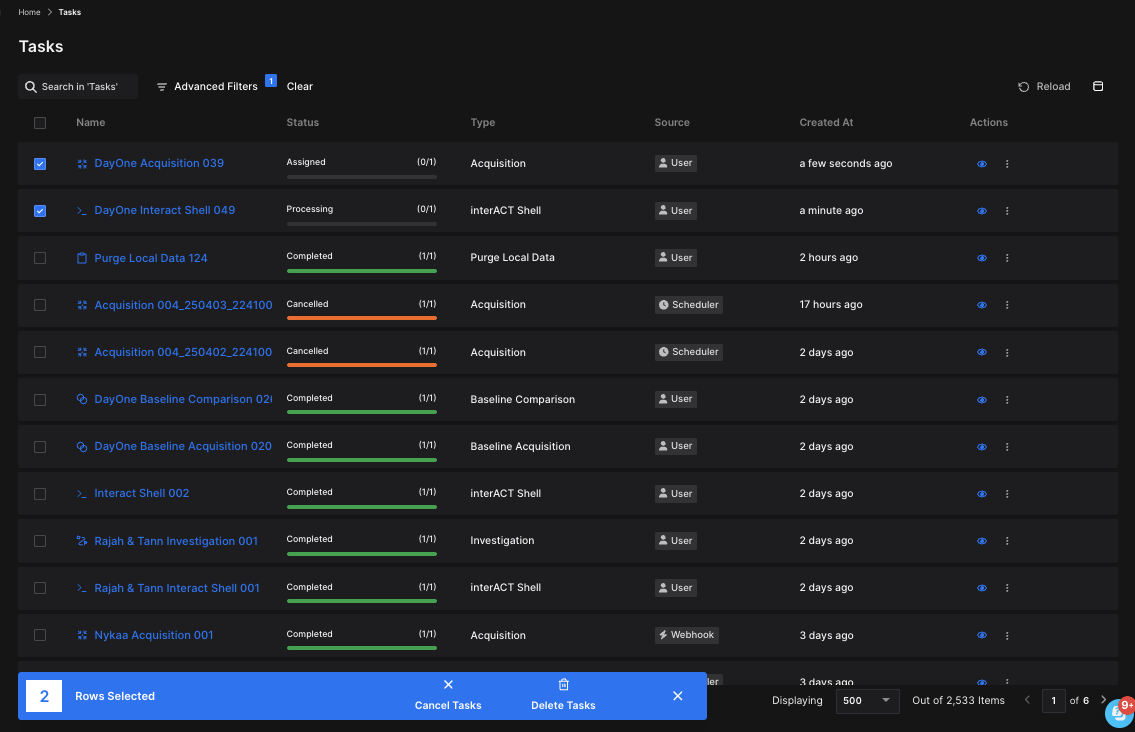
Task Cancellation and Deletion: Bulk actions
Selecting Cancel Task will cancel both the Assigned and Processing tasks listed above as soon as the user selects ‘Yes’ in the warning message that appears:
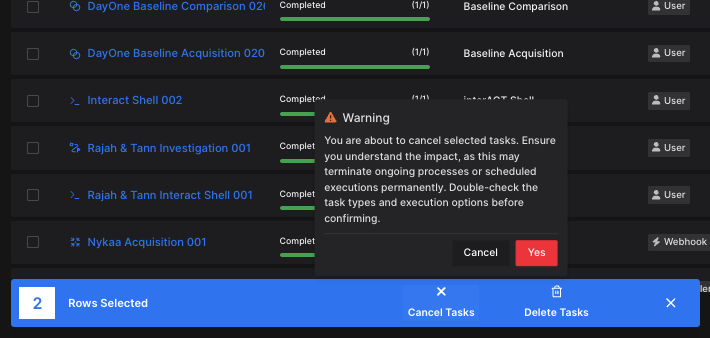
Task Cancellation and Deletion: Warning message
Both tasks will then be marked with the status “Cancelled.”
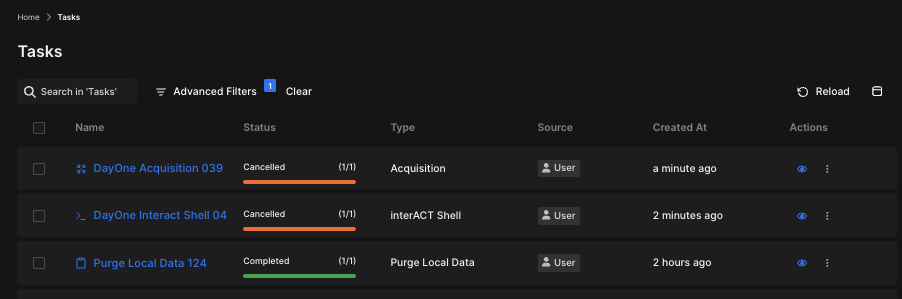
Task Cancellation and Deletion: Task cancelled
Bulk Task Deletion
Section titled “Bulk Task Deletion”In addition to cancellation, users can now delete multiple tasks in one action. When selecting the Delete Tasks option from the bulk action bar, two deletion modes are available:
- Delete Task Only
Removes the task from the console, but leaves any associated data intact on the endpoint. - Delete and Purge Local Data
Deletes the task and removes all associated local data from the target asset(s).
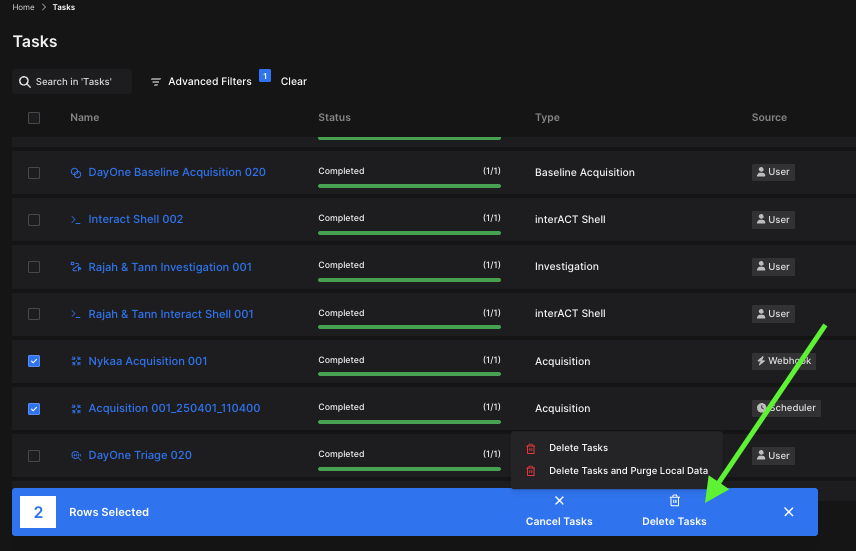
Task Cancellation and Deletion: Bulk operations
To safeguard against unintentional bulk operations, AIR now includes an automatic confirmation prompt when tasking operations affect 70% or more of your assets.
How It Works
Section titled “How It Works”Whenever a task—such as isolation, acquisition, or triage—is configured to target a large portion of your asset inventory, AIR will pause execution and display a confirmation dialog. This gives you a chance to review and confirm the action before it proceeds.
This safeguard also applies to API-based tasking, providing an additional layer of protection for automated workflows.
Benefits
Section titled “Benefits”- Accidental Prevention
Prevents disruptive actions, such as isolating thousands of endpoints due to misconfiguration or scripting errors. - Operational Awareness
Reinforces deliberate decision-making before initiating potentially high-impact operations. - Consistent Safety
Applies equally to both console-initiated and API-triggered tasks.
This feature ensures safer operation at scale, giving you greater confidence when managing thousands of assets in AIR.