

O365 Collector Prerequisites
Before using the Tornado O365 Collector, you need to configure the appropriate access permissions in your Microsoft 365 tenant. There are two access methods available, each with different requirements and capabilities.
Organization-Wide Access (Recommended)
Section titled “Organization-Wide Access (Recommended)”This is the best method for full automation. It allows Tornado to collect organization-wide data, including user directories, sign-ins, and audit logs—without requiring individual user login.
Requirements
Section titled “Requirements”- You must be a Global Administrator in your Microsoft 365 tenant.
User-Based Consent (Limited Access)
Section titled “User-Based Consent (Limited Access)”Allows Tornado to access only the signed-in user’s data.
Requirements
Section titled “Requirements”- A valid Microsoft 365 work account.
- Your organization must allow users to consent to applications.
How to Enable User Consent
Section titled “How to Enable User Consent”If user consent is disabled in your organization, a Privileged Role Administrator can enable it:
- Sign in to the Microsoft Entra Admin Center.
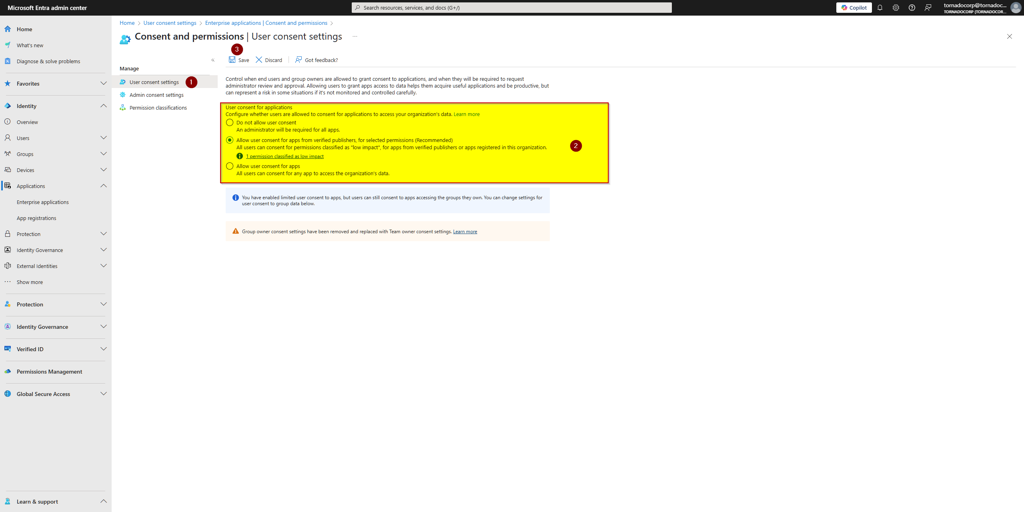
- Navigate to: Identity → Applications → Enterprise applications → Consent and permissions → User consent settings
- Under User consent for applications, select one of the following:
- “Allow user consent for apps from verified publishers…” (recommended)
- “Allow user consent for selected permissions” (for more granular control)
- Click Save.
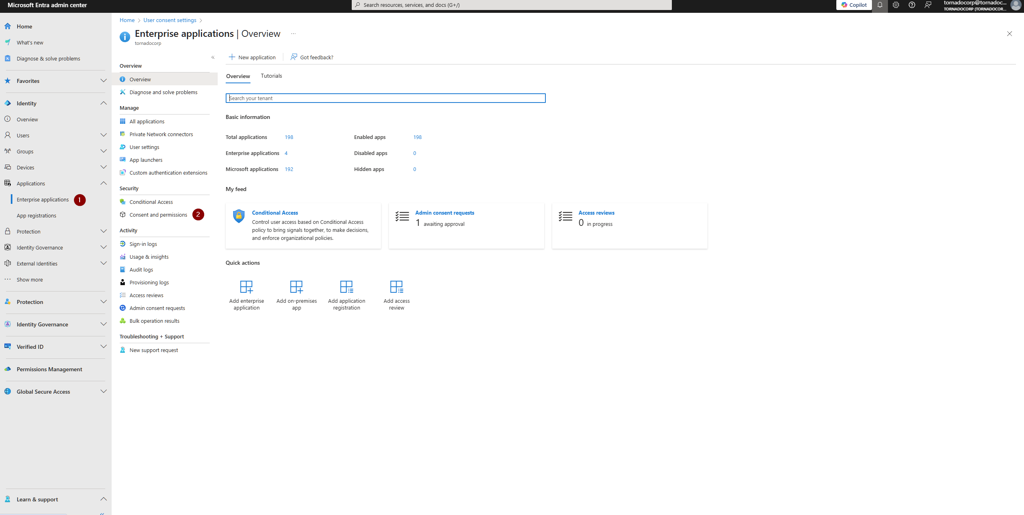
O365 Collector Prerequisites: User consent settings
Enable Admin Consent Workflow
Section titled “Enable Admin Consent Workflow”This feature allows non-admin users to request access to Tornado when the app requires permissions they cannot approve themselves.
Requirements
Section titled “Requirements”You must be a Global Administrator to configure this workflow.
Steps to Enable Admin Consent Workflow
Section titled “Steps to Enable Admin Consent Workflow”- Go to the Microsoft Entra Admin Center.
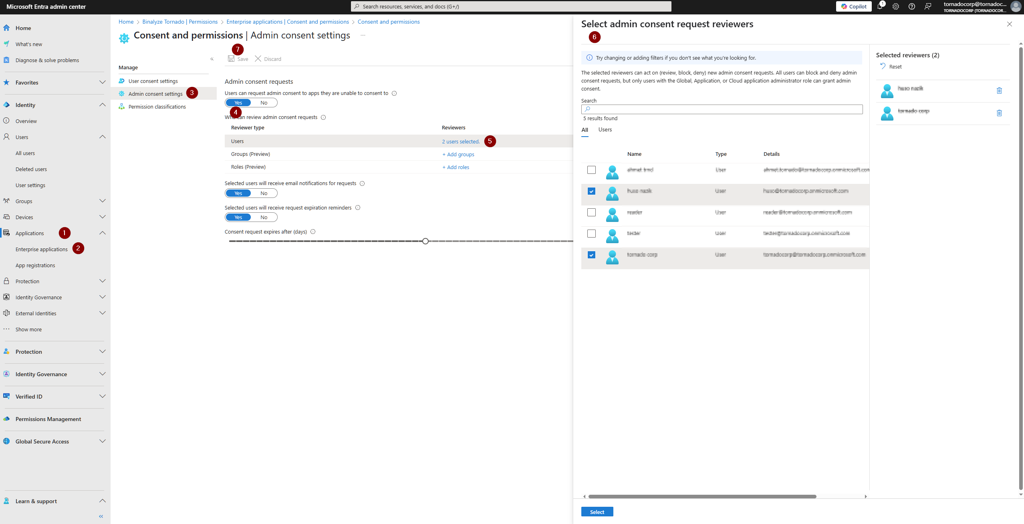
- Navigate to: Identity → Applications → Enterprise applications → Consent and permissions → Admin consent settings
- Configure the following options:
| Setting | Recommended Value |
|---|---|
| Users can request admin consent to apps they are unable to consent to | Yes |
| Who can review admin consent requests | Select admins, users, groups, or roles |
| Email notifications | On |
| Request expiration reminders | On |
| Consent request expires after (days) | e.g., 3 days |
- Click Save.
O365 Collector Prerequisites: Admin consent settings
Workflow: User Consent Request Process
Section titled “Workflow: User Consent Request Process”Once Admin Consent Workflow is enabled, non-admin users can request access to Tornado:
1. Sign in to Tornado
Section titled “1. Sign in to Tornado”The user initiates sign-in to Tornado using their Microsoft 365 credentials.
O365 Collector Prerequisites: Sign in to Tornado
2. Request Access
Section titled “2. Request Access”If the user cannot consent to the required permissions, they are prompted to request access from an administrator.
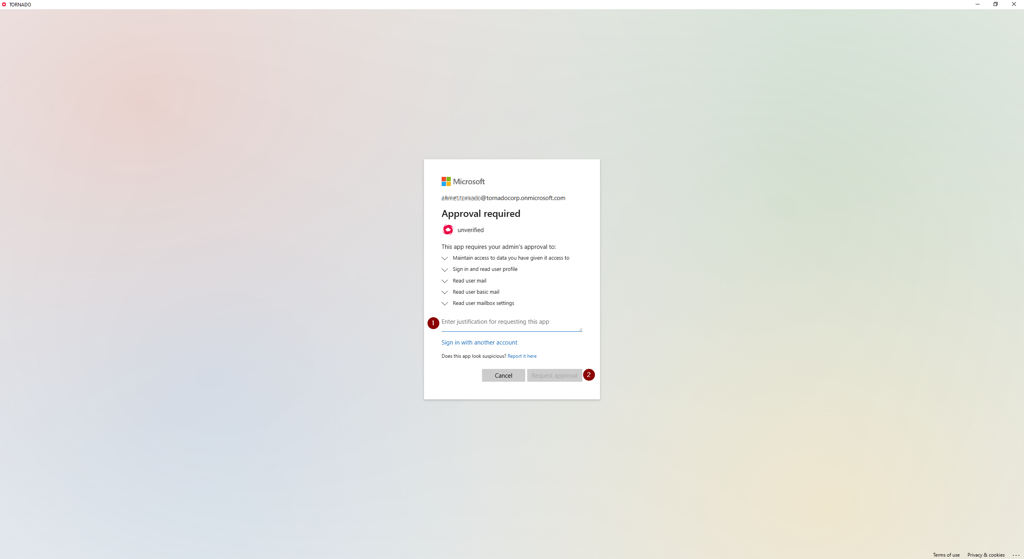
O365 Collector Prerequisites: Request access prompt
3. Submit Consent Request
Section titled “3. Submit Consent Request”The user submits their consent request, which is sent to the designated reviewers for approval.
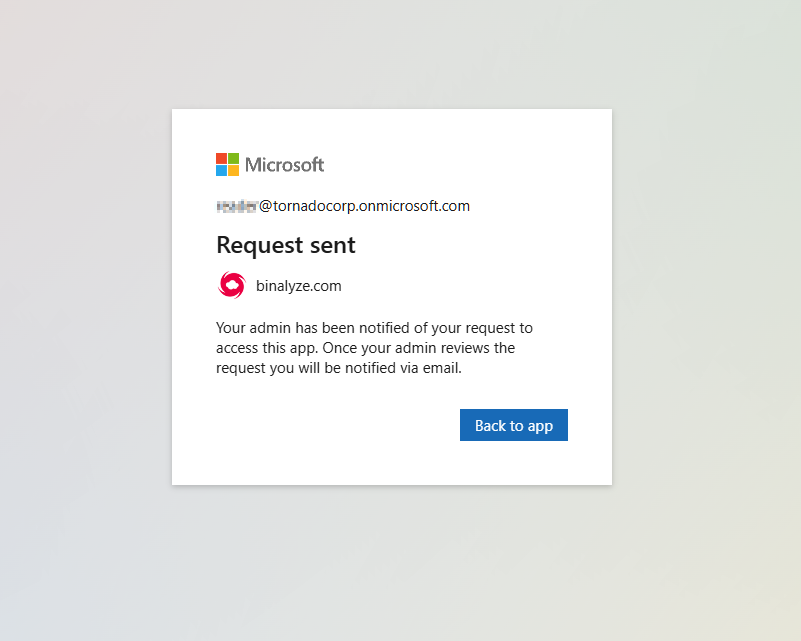
O365 Collector Prerequisites: Consent request submission
4. Review and Approve Request
Section titled “4. Review and Approve Request”Designated reviewers receive an email notification and can approve or reject the consent request from the Microsoft Entra Admin Center.
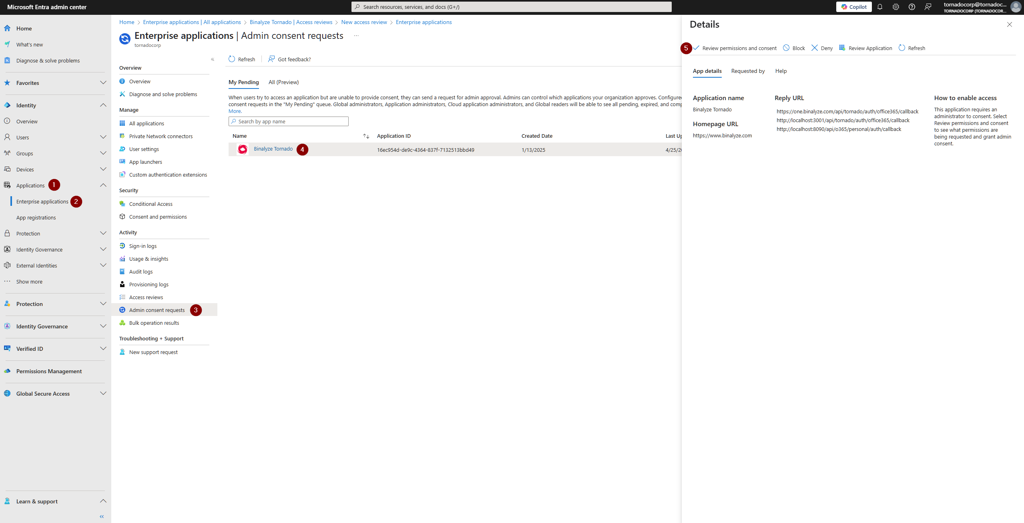
O365 Collector Prerequisites: Review consent request
Security & Management
Section titled “Security & Management”You can monitor or revoke Tornado’s permissions at any time via:
Microsoft Entra Admin Center → Enterprise applications → Binalyze Tornado