

Executions
Overview
Section titled “Overview”An execution is the work an automation performs for one asset within a run. Every execution belongs to exactly one run, and all executions of the same run share the same run ID.
Trigger fires └── Run ├── Execution — Asset A (trigger → action 1 → action 2) ├── Execution — Asset B (trigger → action 1 → action 2) └── Execution — Asset C (trigger → action 1 → action 2)Each execution runs through the automation’s steps independently. If an action fails for Asset B, the executions for Asset A and Asset C are not affected.
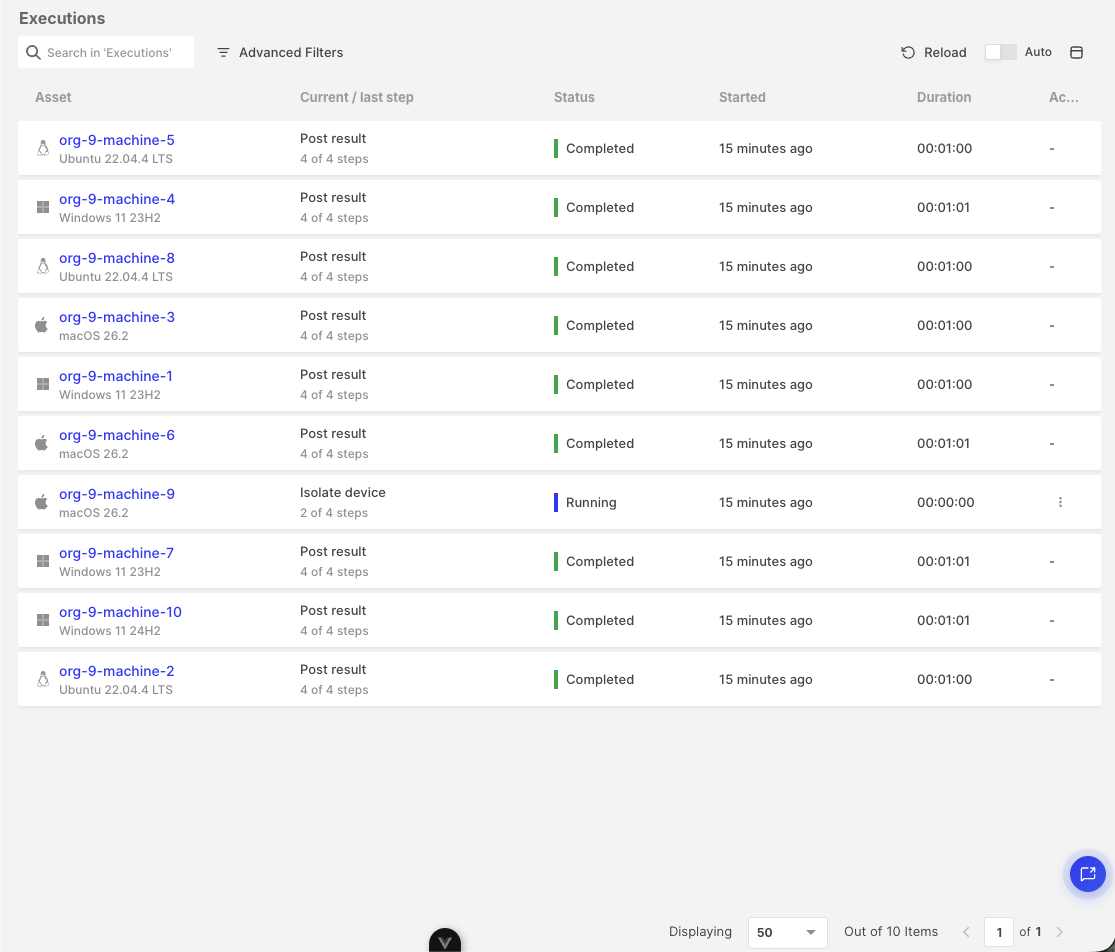
Executions: Executions list of a run
Asset-based executions
Section titled “Asset-based executions”Every automation works on assets. The asset of an execution is called the target asset, and its details are available to every action through {{targetAsset.*}} expressions, including the name, platform, OS, IP address, tags, and organization.
Actions such as Start Evidence Acquisition, Start Hunt/Triage, and Isolate Device always run on the execution’s target asset. You do not select an asset inside the action.
The number of executions in a run depends on the trigger:
- Event triggers, such as Hunt/Triage Completed and Device Registered, create one execution for the asset in the event, but only if that asset matches the target scope.
- Scheduler, HTTP Request, TAXII Feed Synced, and Git Repository Synced create one execution per matching asset.
Execution status
Section titled “Execution status”| Status | Description |
|---|---|
| Pending | The execution has been created and is waiting for a free slot to start. |
| Running | The steps are being executed. |
| Completed | All steps finished successfully. |
| Failed | A step failed, and the remaining steps did not run. |
| Canceled | The execution was stopped by a user, or because the automation was unpublished. |
AIR limits the number of executions that can run at the same time across the Console. When a run includes many assets, the executions wait in the Pending state and start automatically, in order, as slots become available.
Execution details
Section titled “Execution details”Click an execution to open its details. The details view shows:
- The target asset, start time, duration, and status.
- The step progress (for example, 2 of 3 steps) and the current or last step.
- The automation canvas, with the status of every step.
- The execution context of each step: the data the step received and produced, such as the rendered email subject, the HTTP response code, or the created task and its link.
All steps are visible from the start, including those that have not run yet (shown as Pending), so you can see what is still ahead.
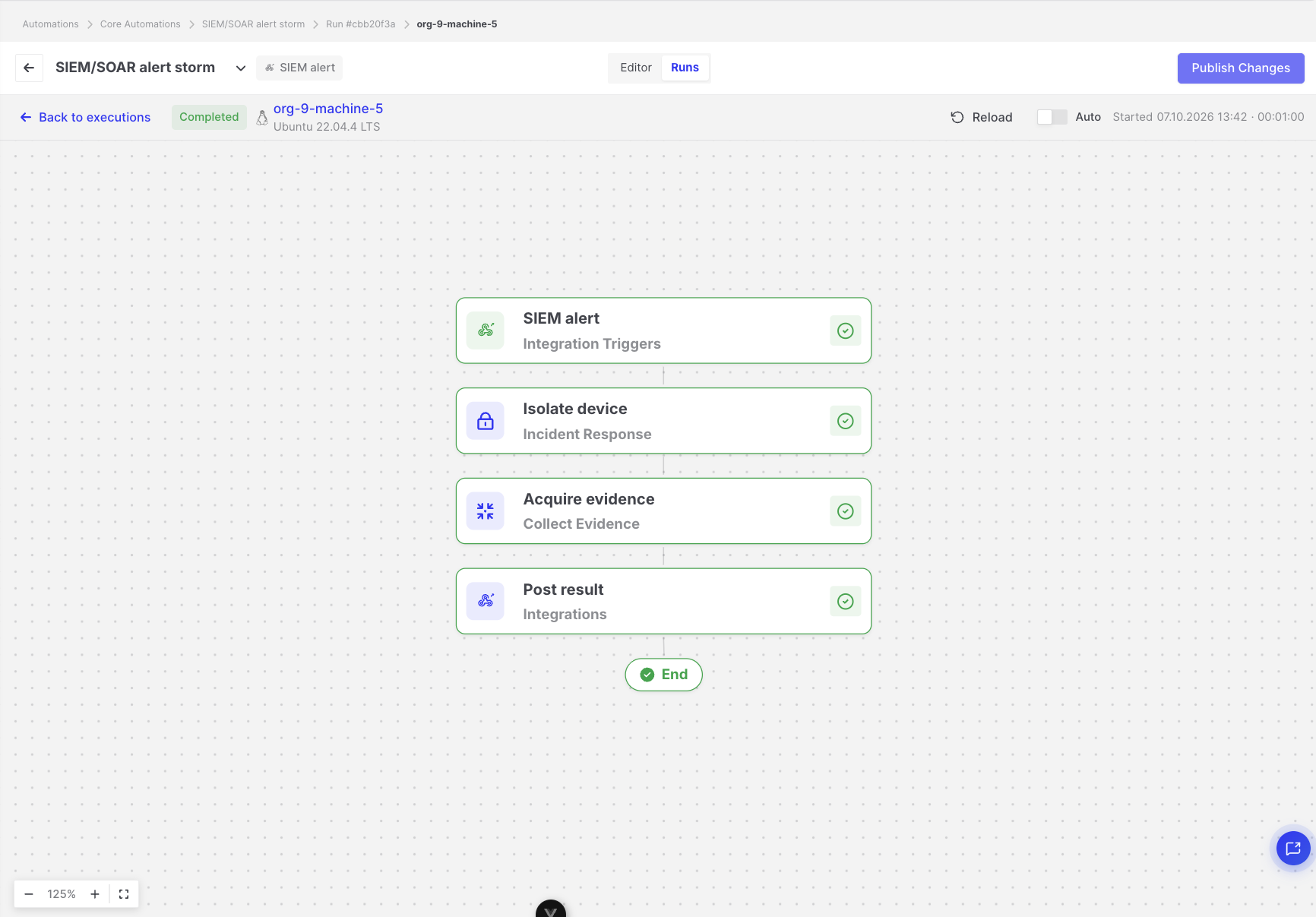
Executions: Execution details with step statuses
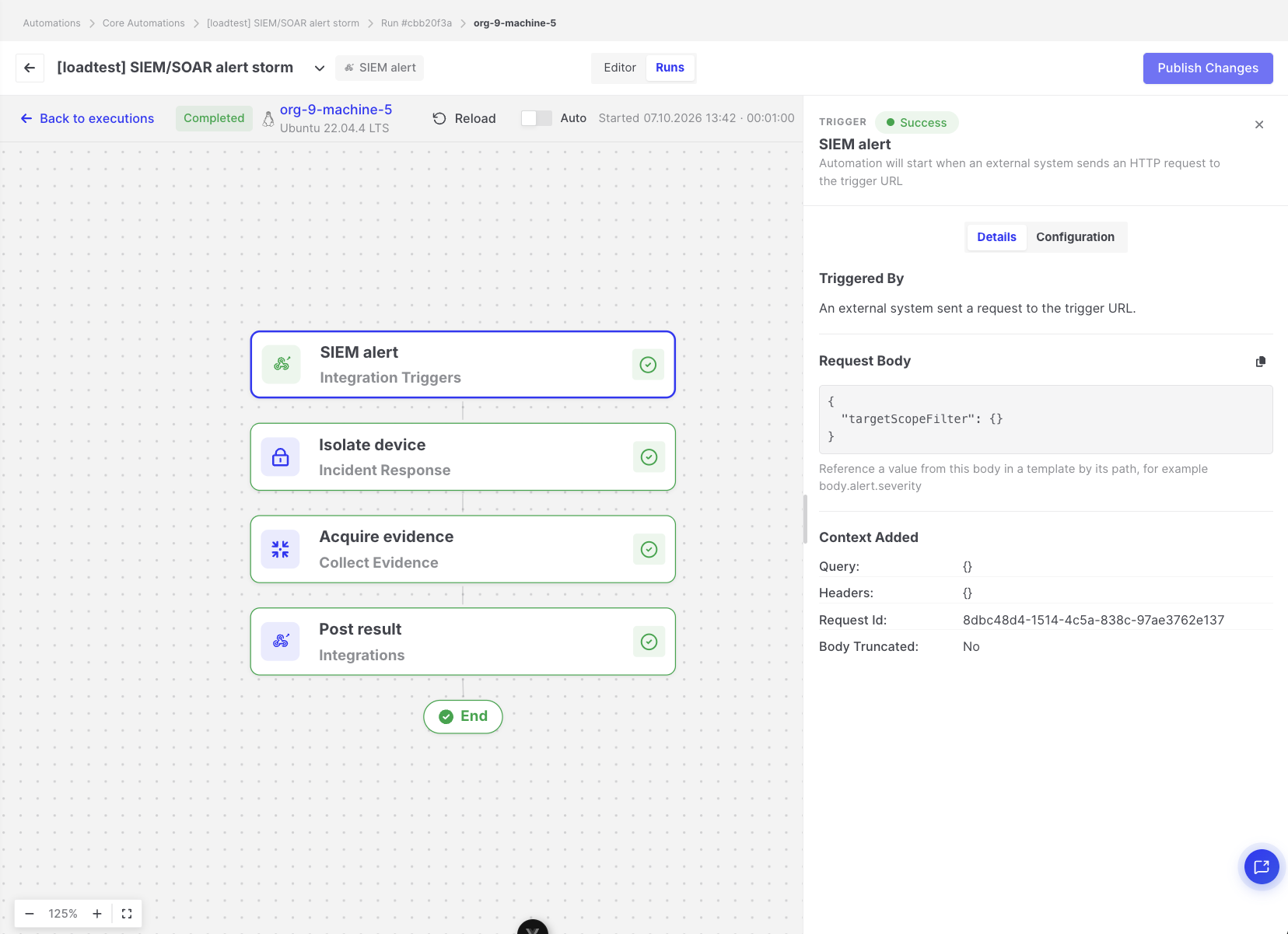
Executions: Step execution context panel
Stopping an execution
Section titled “Stopping an execution”Users with the Manage Automations privilege can click Stop Execution on a pending or running execution. The remaining steps are canceled.
A step that is already in progress may finish, and any AIR tasks that were already created keep running.
Execution visibility
Section titled “Execution visibility”An automation, and therefore all of its runs and executions, belongs to a single organization. You only see executions of automations that belong to the organization you are currently viewing. This also applies to users with access to all organizations: to see another organization’s executions, switch to that organization.