

Variables
Overview
Section titled “Overview”Variables store values that you want to reuse in your automations, such as a host name, a channel name, an email address, or an API token. You define a value once and reference it in any action with {{variables.KEY}}. When the value changes, you only update the variable instead of every automation that uses it.
A variable is stored either as plain text or encrypted.
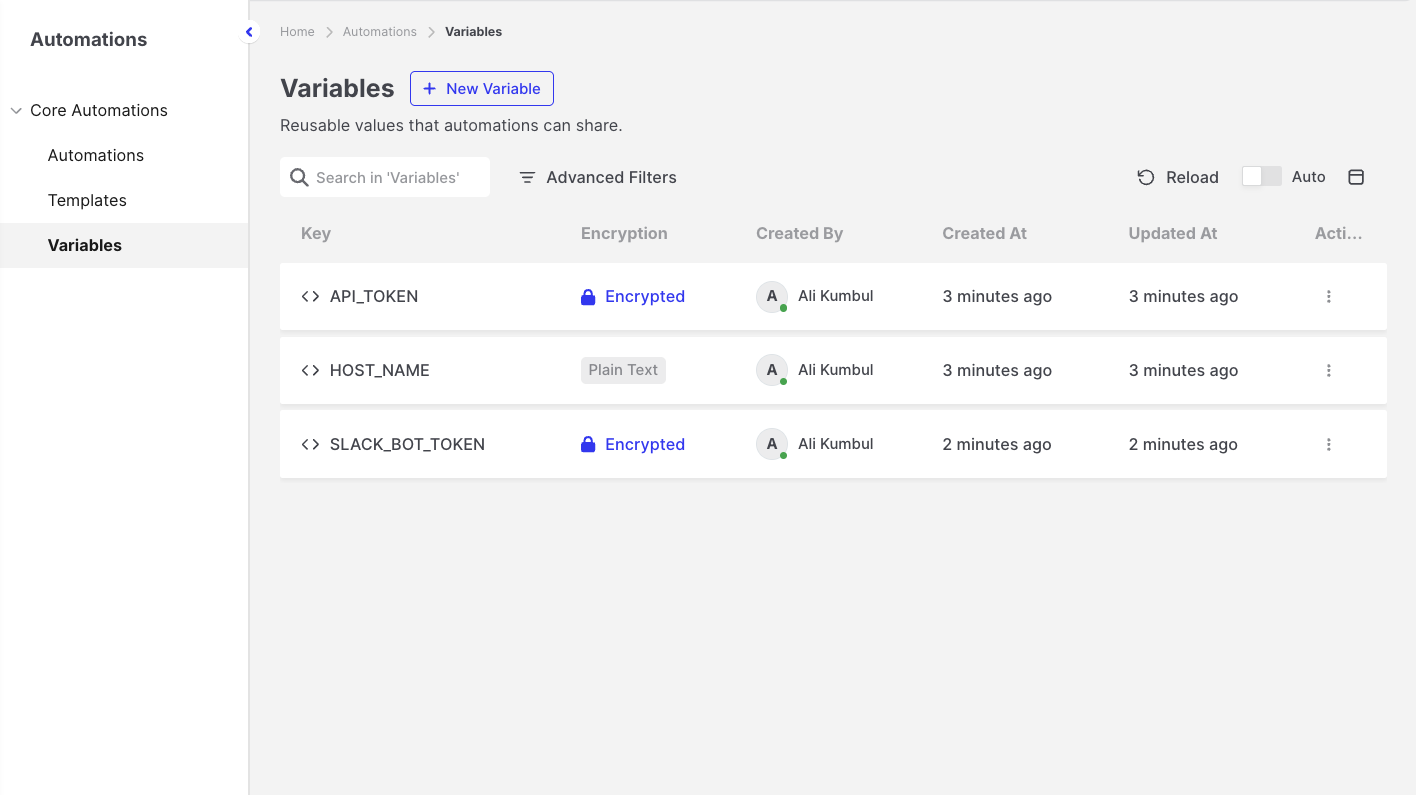
Variables: Variables page
Plain-text and encrypted variables
Section titled “Plain-text and encrypted variables”| Plain text | Encrypted | |
|---|---|---|
| Use it for | Non-secret values, such as host names, channel names, email addresses, and tag names. | Secrets, such as API tokens, passwords, and keys. |
| View the value later | Yes, by opening Update. | No. The value cannot be viewed again after it is saved. |
| Change the value | Yes, with Update. | Yes, with Replace Value. You enter a new value, and the old value is not displayed. |
| Select as a credential | No | Yes (Slack Bot Credential, Bearer Token Credential) |
| Shown in step output and logs | Yes | No, the value is masked. |
| Conversion | Can be encrypted at any time. This is permanent. | Cannot be converted back to plain text. |
The variables list never shows values, regardless of the variable type.
Creating a variable
Section titled “Creating a variable”- Go to Automations > Variables, and click Add Variable. The variable is created in the organization you are currently viewing. See Organizations and visibility.
- Enter a Key, the name you use in expressions. The key must start with a letter or an underscore, can contain only letters, digits, and underscores, and can be up to 64 characters long, for example
SLACK_TOKENorHOST_NAME. - Enter the Value, up to 2048 bytes.
- For secrets, turn on Store as Encrypted. This option is off by default. You can encrypt a plain-text variable later, but you cannot convert an encrypted variable back to plain text.
- Click Save.
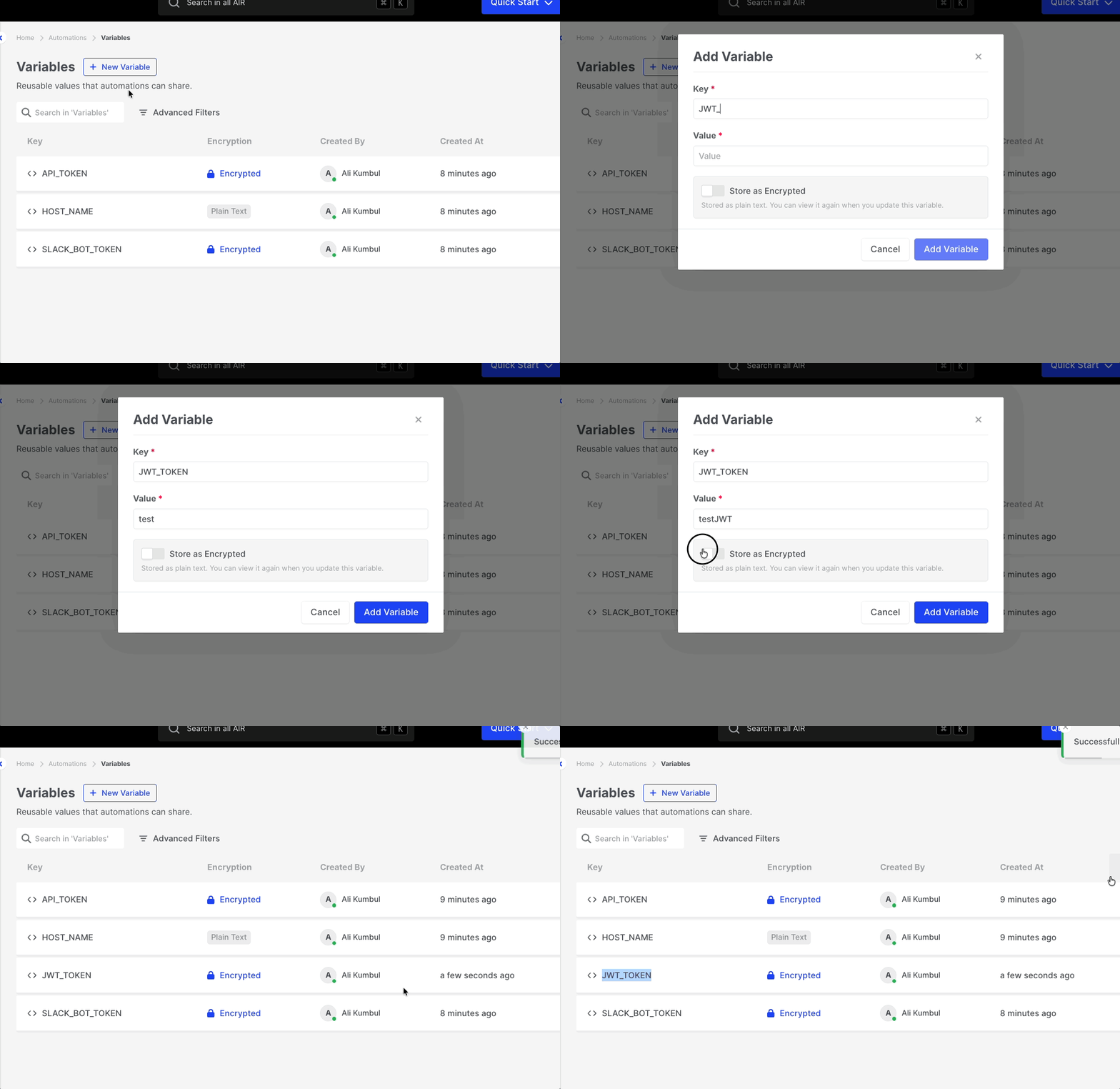
Variables: Add Variable dialog
Using a variable
Section titled “Using a variable”In any action field that supports expressions, insert the variable with the variable picker, or type it directly:
https://{{variables.HOST_NAME}}/api/alertsWhen the step runs, AIR replaces the expression with the variable’s value. This works for both plain-text and encrypted variables.
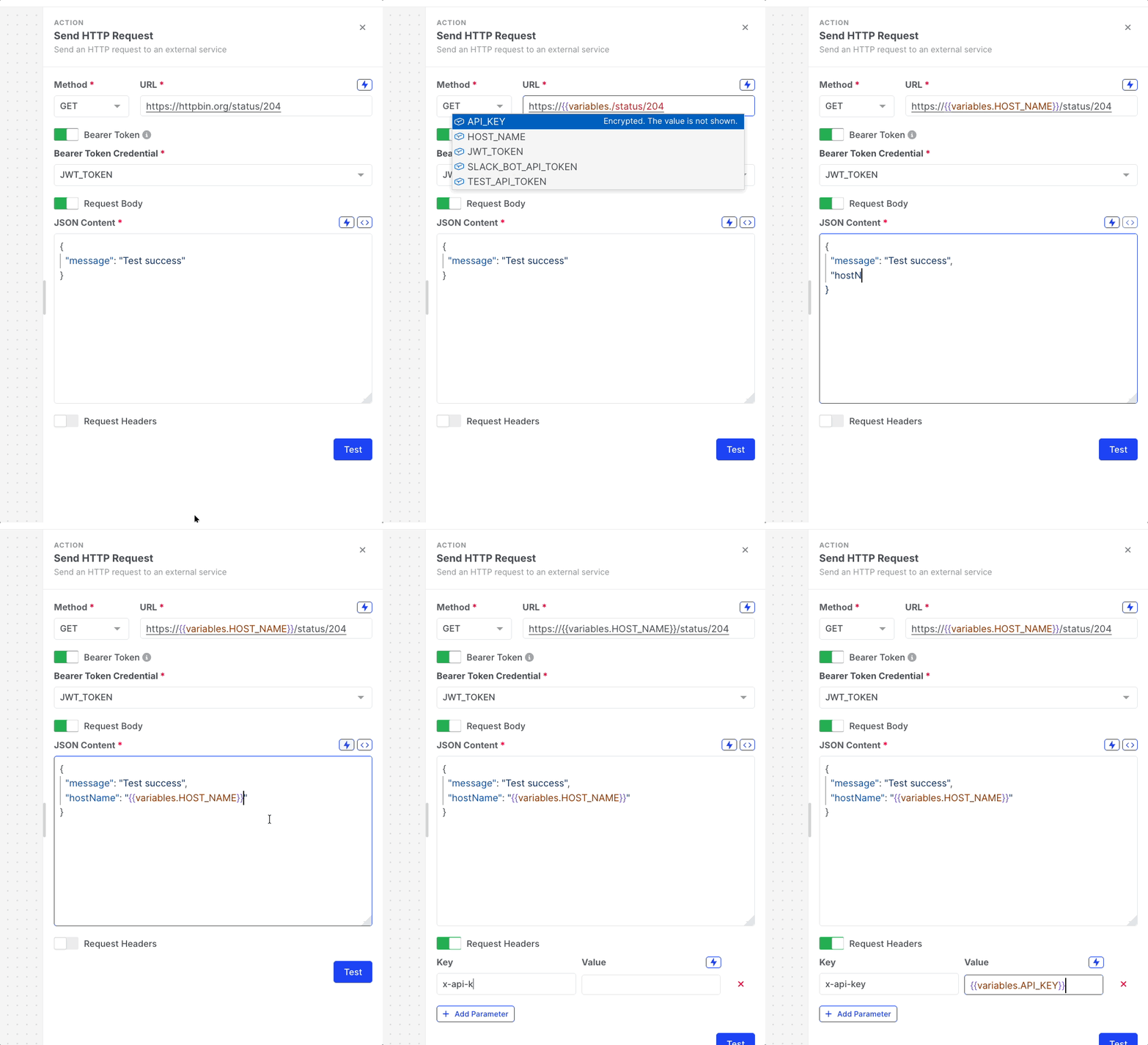
Variables: Using a variable in an action
Credential fields, such as Slack Bot Credential and Bearer Token Credential, only list the encrypted variables of the automation’s organization.
If the referenced variable does not exist when the step runs, the step fails.
Organizations and visibility
Section titled “Organizations and visibility”Variables belong to organizations in the same way as automations:
- Every variable belongs to exactly one organization, the one you are viewing when you create it.
- Only users of that organization can see, use, or change the variable. The Variables page lists the variables of the organization you are currently viewing; to see another organization’s variables, switch to that organization.
- An automation can only use the variables of its own organization.
- A key is unique within its organization, so
{{variables.KEY}}always resolves to exactly one value. The same key can exist in several organizations, each with its own value.
When an organization is deleted, its variables are deleted with it.
Updating, encrypting, and deleting variables
Section titled “Updating, encrypting, and deleting variables”- Update: changes the value of a plain-text variable.
- Encrypt: converts a plain-text variable to an encrypted one. This is permanent; the value cannot be viewed or converted back afterwards.
- Replace Value: sets a new value for an encrypted variable.
- Delete: removes the variable. Automation steps that reference its key fail until a variable with the same key is created again.
You cannot change the key or the organization of a variable. To rename a variable, create a new one and update the automations that use it.
Permissions
Section titled “Permissions”- View Automations: view the variables list.
- Manage Automations: create, update, encrypt, replace, and delete variables, and view the value of a plain-text variable.