

Templates
Overview
Section titled “Overview”Templates are ready-made automations for common use cases. Instead of building an automation from scratch, select a template that matches your goal, complete the few settings that depend on your environment, and publish it.
Templates are built into AIR and are available in every organization. You cannot change or delete them; using a template always creates your own copy.
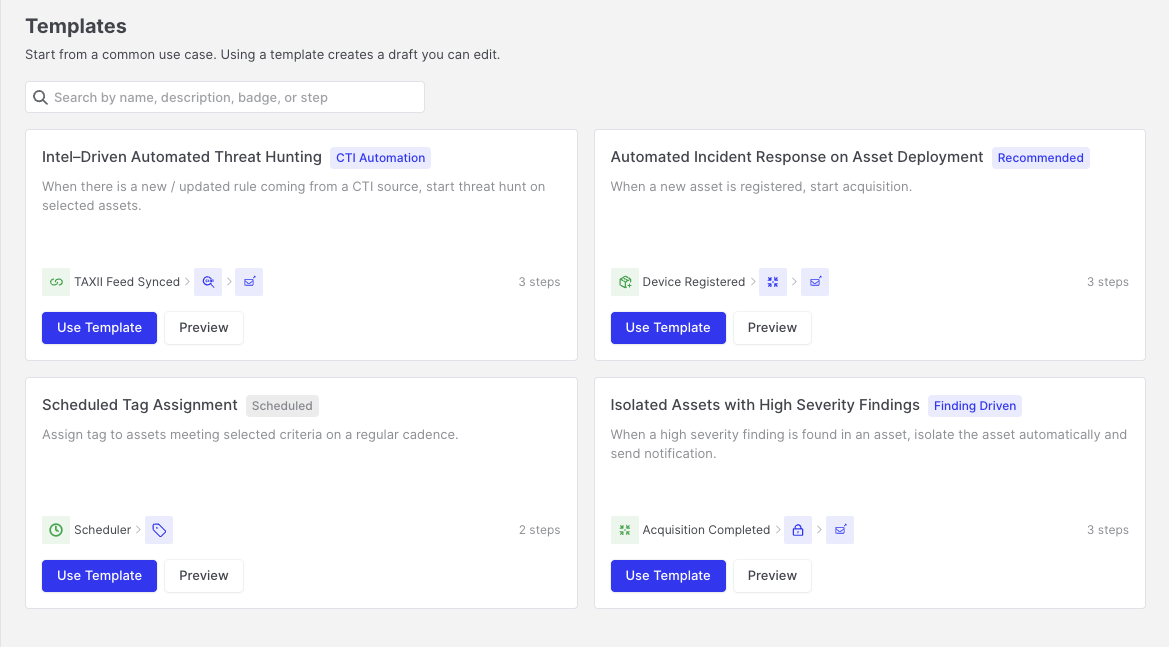
Templates: Templates page
Finding a template
Section titled “Finding a template”Go to Automations > Templates. Each template card shows the template name, a short description, its steps, and badges that describe the use case:
| Badge | Description |
|---|---|
| Recommended | A good starting point for most environments. |
| Finding Driven | Reacts to findings from earlier tasks. |
| Scheduled | Runs on a schedule. |
| CTI Automation | Uses threat intelligence feeds. |
Use the search box to find templates by name, description, badge, or step. If you do not have any automations yet, the Core Automations page also suggests a few templates.
Available templates
Section titled “Available templates”| Template | Steps | Description |
|---|---|---|
| Intel-Driven Automated Threat Hunting | TAXII Feed Synced → Start Hunt/Triage → Send Email | Hunts on assets with the rules a TAXII feed has just delivered, and emails the results. |
| Automated Incident Response on Asset Deployment | Device Registered → Start Evidence Acquisition → Send Email | Collects evidence from every new asset as soon as it registers, and emails a summary. |
| Scheduled Tag Assignment | Scheduler → Start Auto Asset Tagging | Re-applies Auto Asset Tagging rules to assets on a regular schedule. |
| Isolated Assets with High Severity Findings | Evidence Acquisition Completed → Isolate Device → Send Email | Isolates assets whose acquisition produced high-severity findings, and notifies the team. |
New templates are added with AIR updates.
Previewing a template
Section titled “Previewing a template”Click a template to open the Template Preview. It shows the trigger and every action, together with their settings, so you can check what the automation does before you use it.
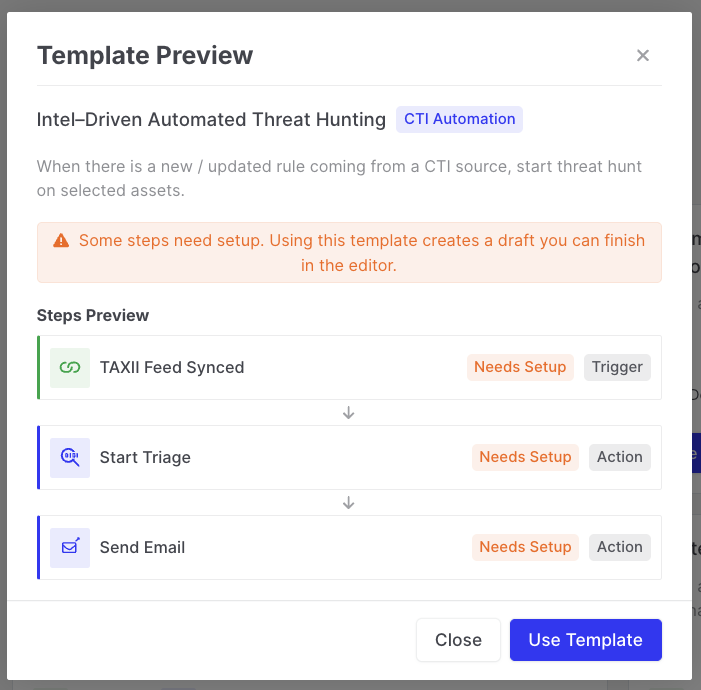
Templates: Template Preview
Using a template
Section titled “Using a template”- Click Use Template.
- AIR opens a new, unsaved draft in the automation editor, containing all the steps from the template.
- Steps that depend on your environment, such as the acquisition profile, the email recipients, the TAXII feed, or the target scope, are marked Needs Setup. Open each of these steps and complete its configuration.
- Name the automation, and click Save Draft or Publish. The automation is created in the organization you are currently viewing.
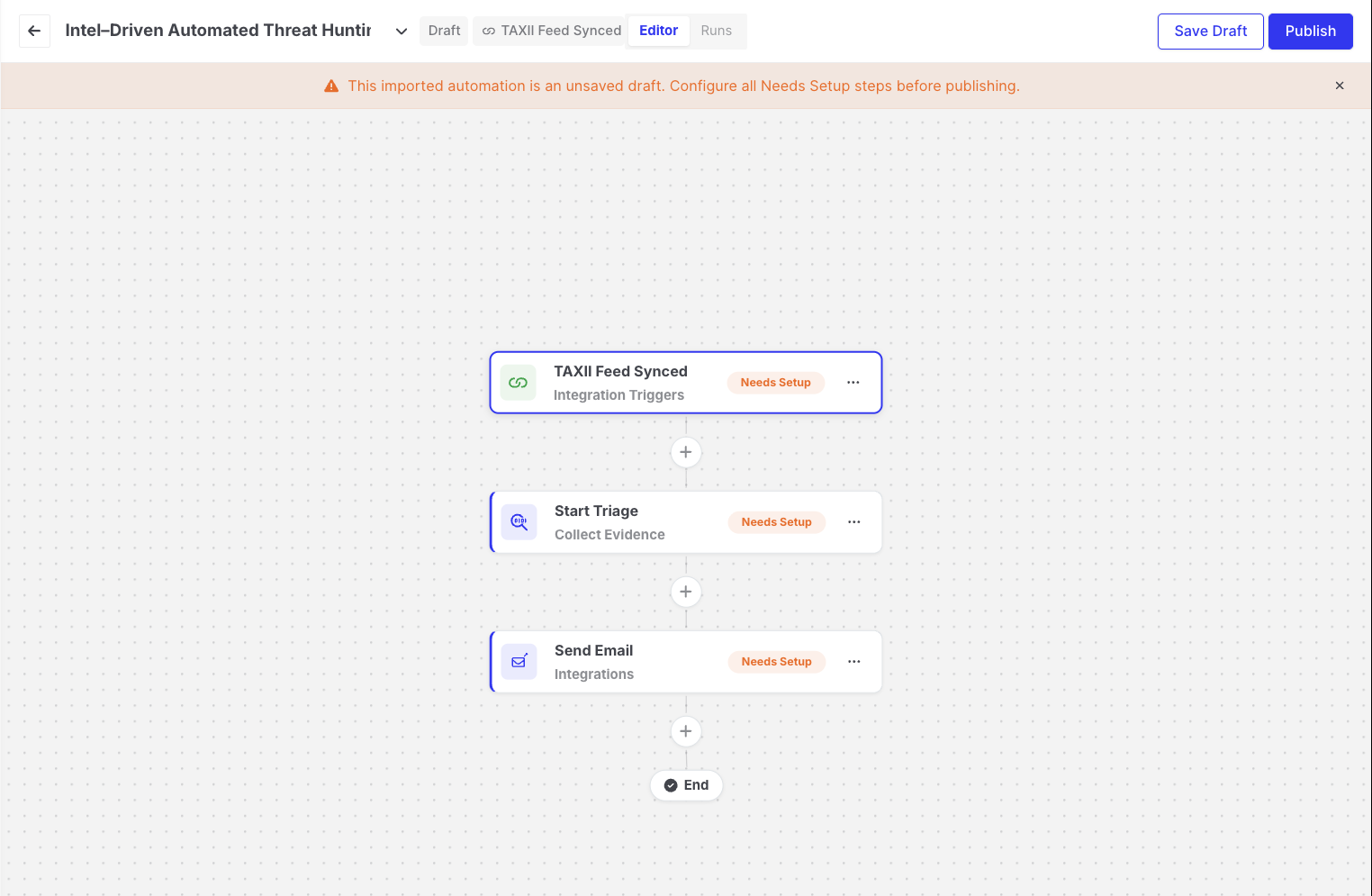
Templates: Draft created from a template with Needs Setup steps
From then on, the automation behaves like any other automation: you can add, remove, or change steps freely. Your changes do not affect the template, and later template updates do not change your automation.
Permissions
Section titled “Permissions”- The View Automations privilege is enough to browse and preview templates.
- The Manage Automations privilege is required to use a template.