

Send HTTP Request
Overview
Section titled “Overview”The Send HTTP Request action calls an HTTP or HTTPS endpoint. Use it to post to webhooks, open tickets, notify a SOAR platform, or call any API that accepts HTTP requests.
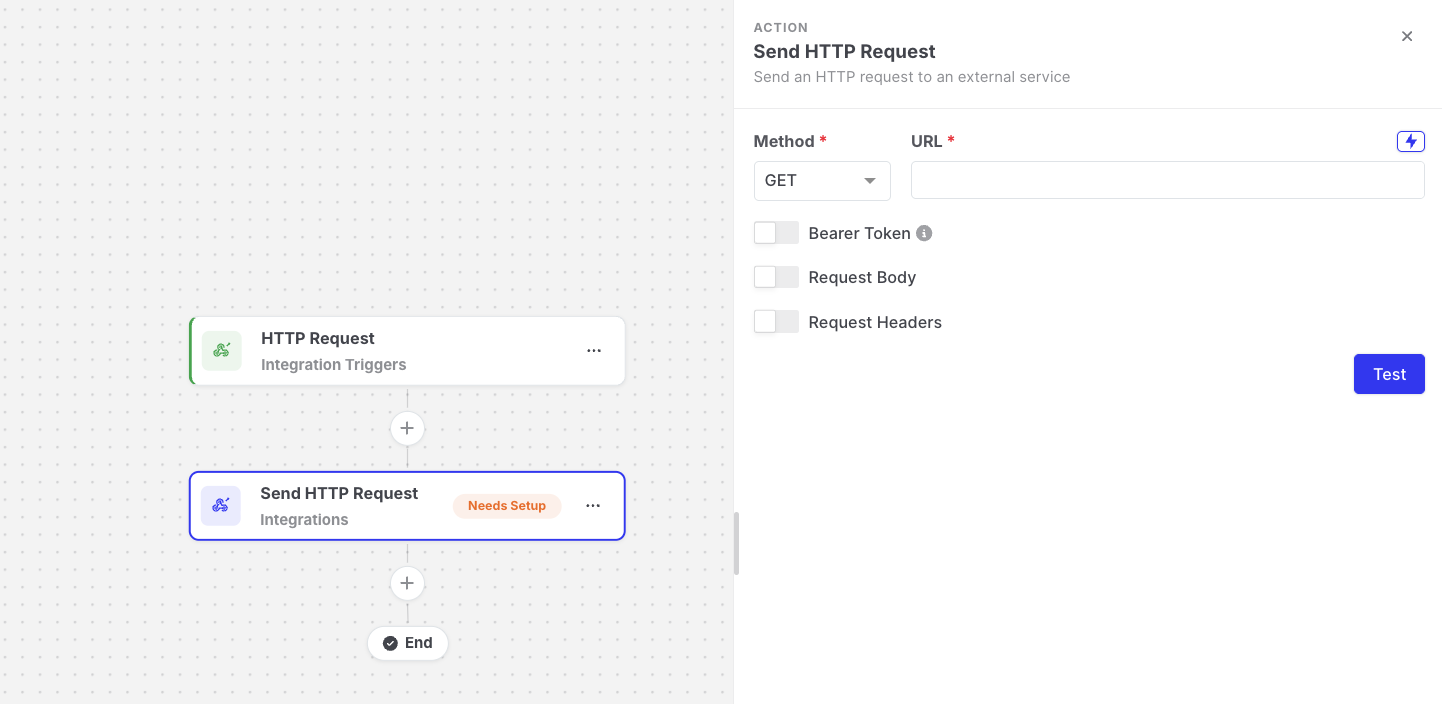
Send HTTP Request: Action settings
Settings
Section titled “Settings”| Setting | Description |
|---|---|
| Method | GET, POST, PUT, PATCH, or DELETE. |
| URL | The address to call. Must start with http:// or https://. Supports expressions. |
| Request Headers | Optional key-value pairs. Values support expressions, and keys must be unique. |
| Body | For methods that send a body. Must be valid JSON. Supports expressions. |
| Bearer Token Credential | Optional. An encrypted variable that is sent as Authorization: Bearer <value>. |
The URL must be a complete address that starts with http:// or https://. You can enter it directly, or build part of it from expressions. For example, you can keep the host name in a variable, so you can change it in one place for every automation that uses it:
| URL entered | URL called |
|---|---|
https://httpbin.org/status/204 | https://httpbin.org/status/204 |
https://{{variables.HOST_NAME}}/status/204 (with HOST_NAME set to httpbin.org) | https://httpbin.org/status/204 |
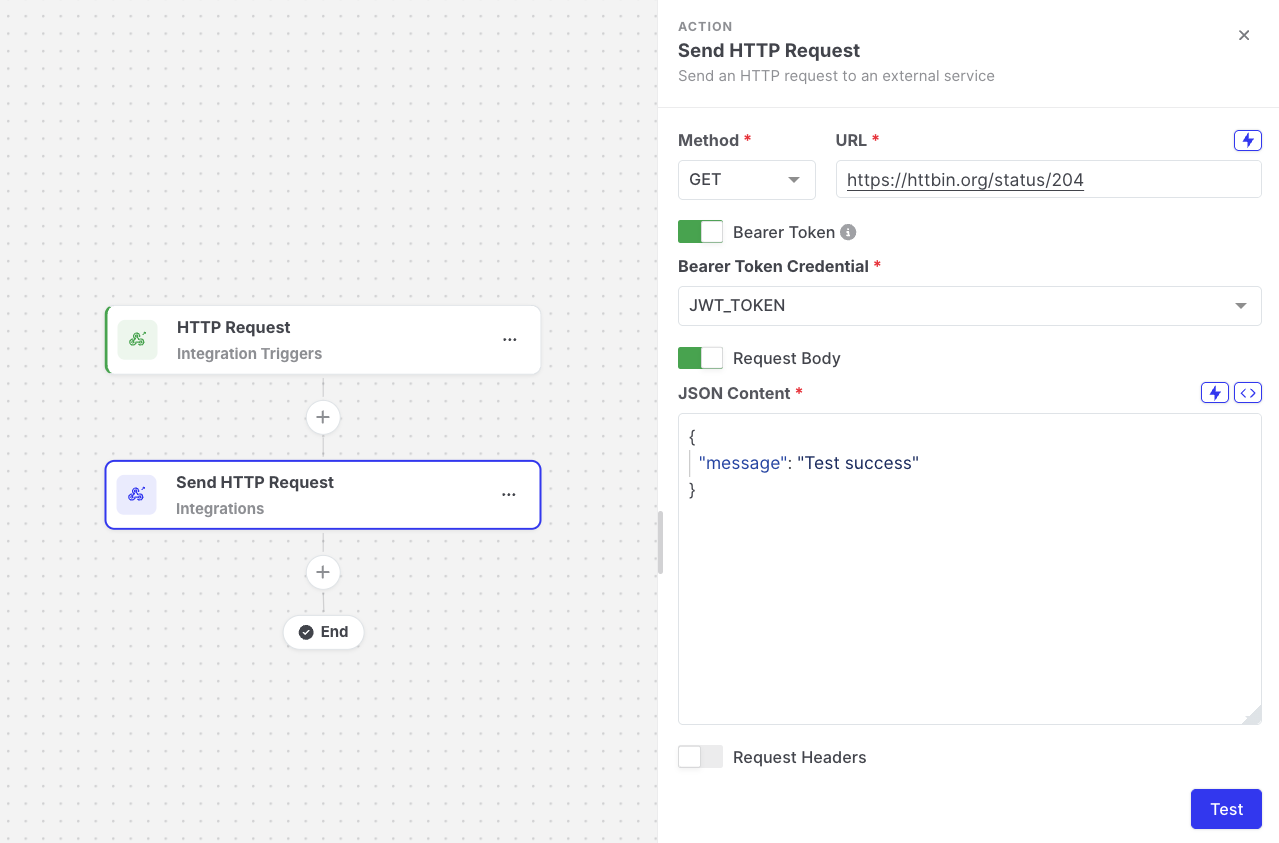
Send HTTP Request: URL field with a static address
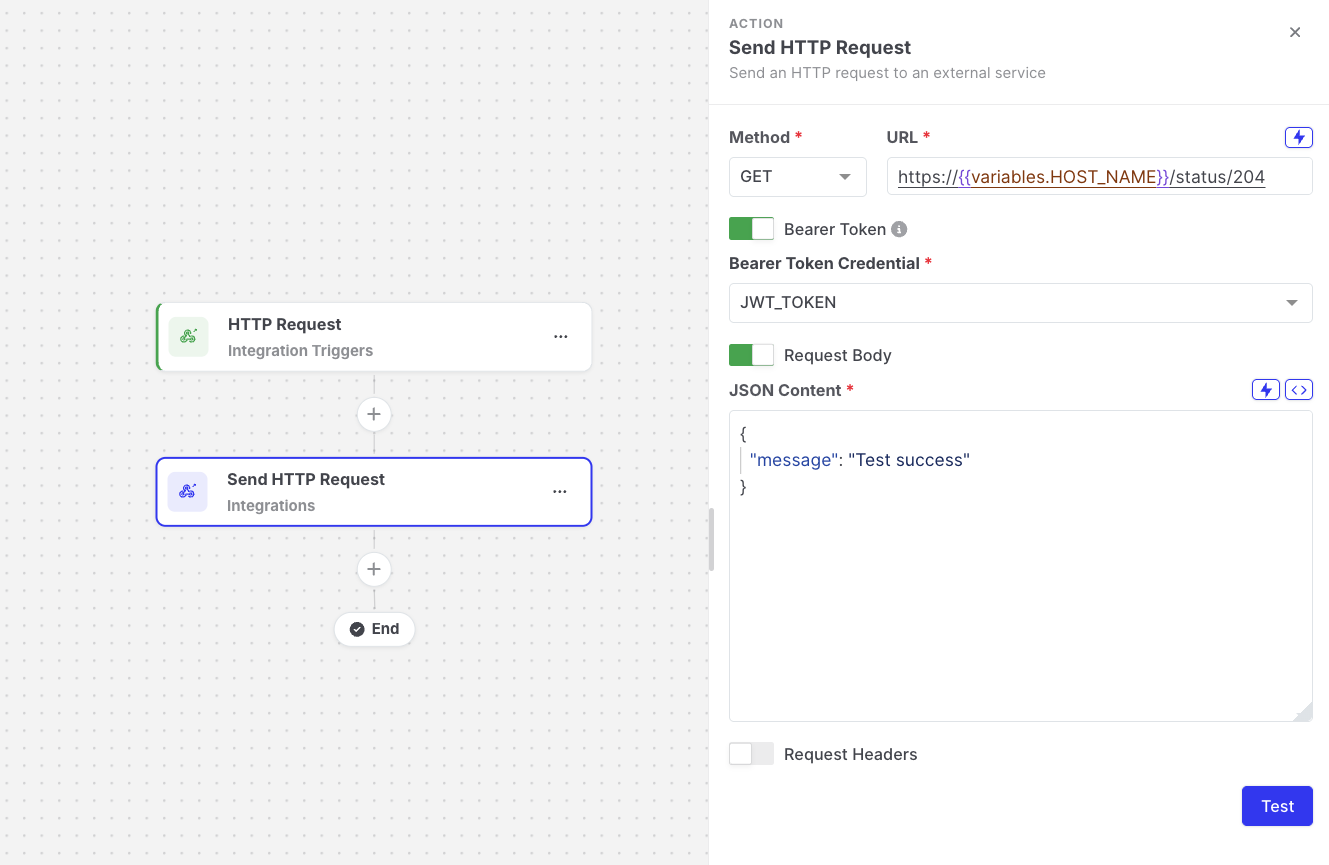
Send HTTP Request: URL field with a variable
For security reasons, some destinations are blocked, such as localhost and cloud instance metadata addresses. On AIR SaaS, private network addresses are also blocked.
Request headers
Section titled “Request headers”Add headers as key-value pairs in Request Headers. Each key must be unique. Header values support expressions, so you can fill them with asset details, data from earlier steps, or variables:
| Header key | Header value | Sent as |
|---|---|---|
X-Source | {{global.automationName}} | The name of the automation. |
X-Asset | {{targetAsset.name}} | The name of the target asset. |
X-API-Key | {{variables.MY_API_KEY}} | The value of the encrypted MY_API_KEY variable. |
Sending an API key in a header
Section titled “Sending an API key in a header”Many APIs expect a key in a custom header such as X-API-Key instead of a bearer token. To send it securely:
- Go to Automations > Variables, and create a variable that holds the API key, for example
MY_API_KEY. Turn on Store as Encrypted. See Creating a variable. - In Request Headers, add a header with the key
X-API-Key. - Set the value to
{{variables.MY_API_KEY}}, either by typing it or by inserting it with the variable picker.
When the step runs, AIR replaces the expression with the key. Because the variable is encrypted, its value is not shown in the editor and is masked in the step output and logs.
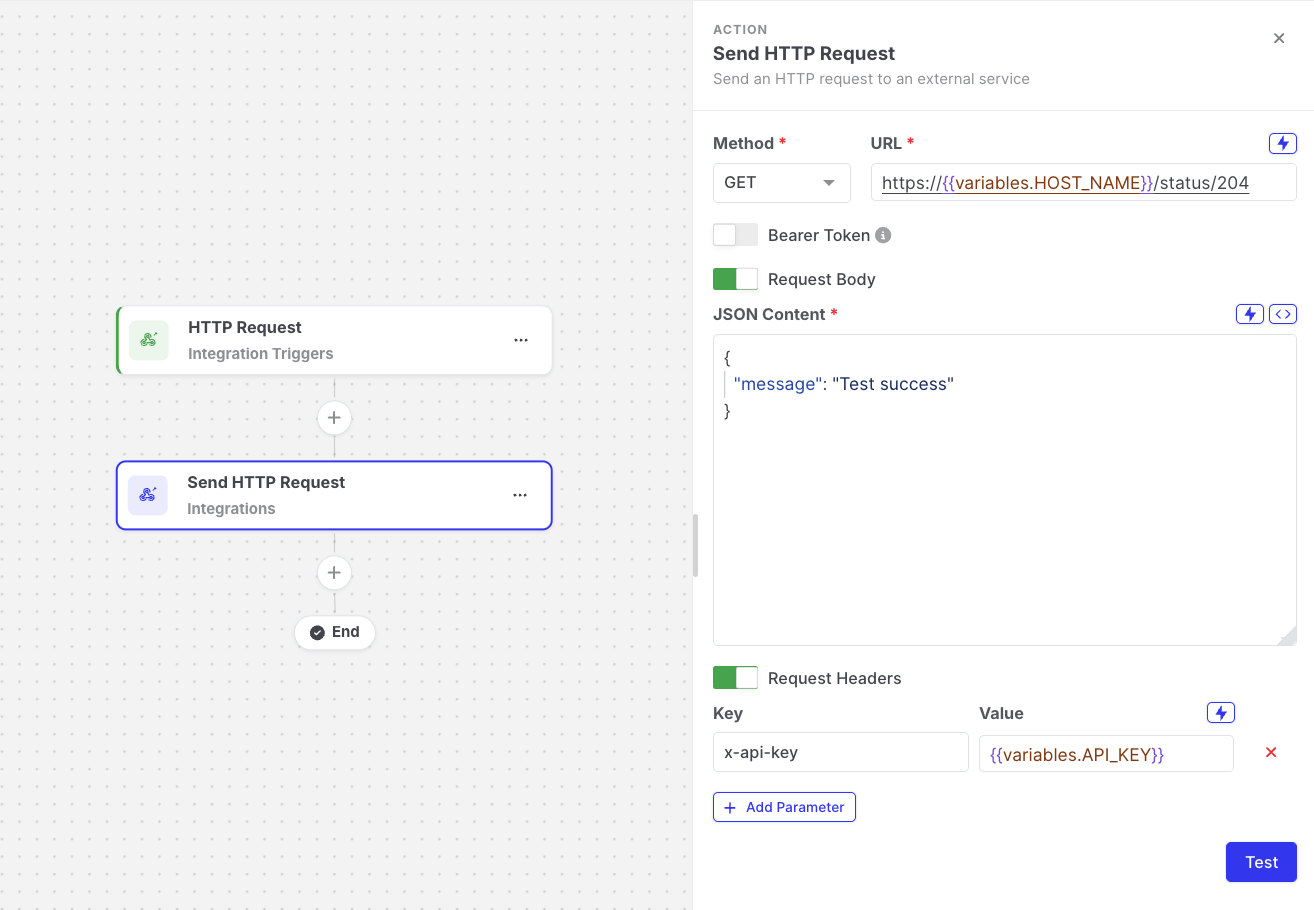
Send HTTP Request: X-API-Key header with an encrypted variable
Authentication
Section titled “Authentication”There are two ways to send an Authorization header. Use only one of them.
| Option | When to use it |
|---|---|
| Bearer Token Credential (recommended) | The API expects a bearer token. Store the token as an encrypted variable and select it here. AIR sends Authorization: Bearer <token>, and the token is never displayed in the editor, the step output, or the logs. |
| Authorization header in Request Headers | The API expects another scheme, for example Basic ... or a custom value, or you want to enter the value yourself. The value is visible to everyone who can view the automation. |
If you select a Bearer Token Credential and add an Authorization header, the editor displays the message Remove this header or turn off Bearer Token. Both set the Authorization header. Remove one of them before saving.
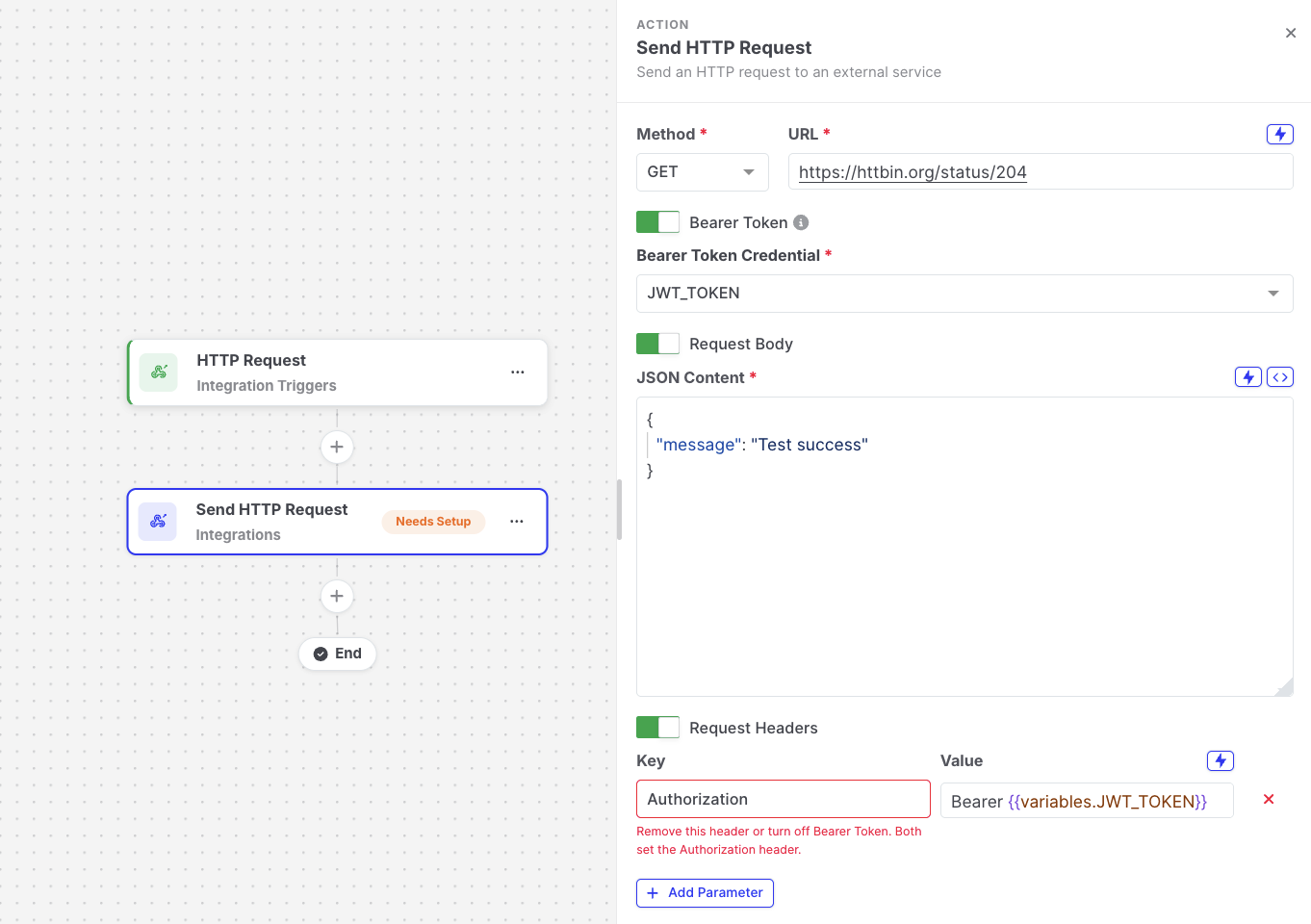
Send HTTP Request: Authorization header conflict message
For APIs that expect the key in a different header, such as X-API-Key, see Sending an API key in a header.
The body must be valid JSON. Place expressions inside the JSON:
{ "title": "Automation {{global.automationName}}", "asset": "{{targetAsset.name}}", "ip": "{{targetAsset.ipAddress}}", "highFindings": "{{start-evidence-acquisition.output.findingCounts.high}}", "link": "{{start-evidence-acquisition.output.taskDetailsViewUrl}}"}Values inserted with double braces ({{ }}) are escaped, so they cannot break the JSON. Special characters such as &, <, >, and " are sent as HTML entities, for example &.
To insert a list or an object as actual JSON instead of text, use the json helper with triple braces and without quotes:
{ "asset": "{{targetAsset.name}}", "tags": {{{json targetAsset.tags}}}}Result
Section titled “Result”- The step succeeds when the endpoint responds with a 2xx status code.
- Any other status code, a timeout, or an unreachable host fails the step.
- Redirects are not followed. A
3xxresponse fails the step, so use the final address in the URL.
Output available to later steps
Section titled “Output available to later steps”| Field | Example expression |
|---|---|
| Response status code | {{send-http-request.httpStatusCode}} |
| Response body | {{send-http-request.responseBody}} |
| Response time (ms) | {{send-http-request.responseTimeMs}} |
| URL that was called | {{send-http-request.resolvedConfig.url}} |
- Use Test to send a test request. All expressions are replaced with the word
test, so a URL that uses an expression for the host name callshttps://test/...during the test.