

Start Auto Asset Tagging
Overview
Section titled “Overview”The Start Auto Asset Tagging action runs Auto Asset Tagging rules on the asset from the trigger and waits until the tags have been applied.
Use it to keep asset tags accurate, for example to re-tag assets on a schedule, or to tag an asset right after it registers so that later steps, or the target scopes of other automations, can rely on those tags.
Rule selection
Section titled “Rule selection”The action offers two ways to choose which Auto Asset Tagging rules run on the asset.
All enabled rules
Section titled “All enabled rules”This is the default option. The action uses every enabled Auto Asset Tagging rule of the asset’s organization.
Rules are resolved when the automation runs, so the action always uses the current rule set. Rules you add or enable later are included automatically, and rules you disable are left out, without editing the automation.
Use this option to keep all asset tags up to date, for example on a regular schedule.
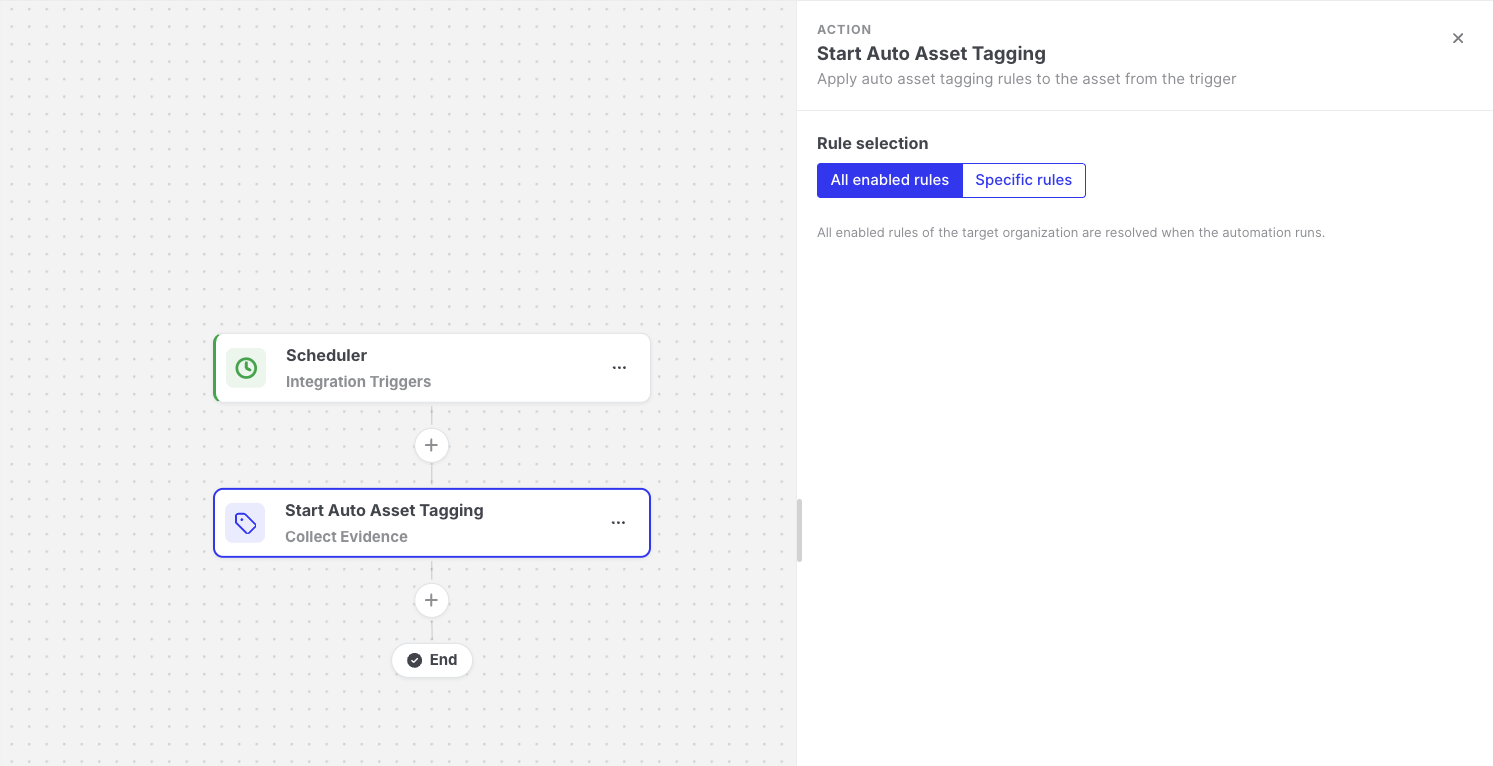
Start Auto Asset Tagging: All enabled rules
Specific rules
Section titled “Specific rules”The action uses only the rules you select.
- Selected rules run even if they are disabled in the Auto Asset Tagging settings. This lets you use rules in automations without applying them to every new asset automatically.
- If a selected rule is deleted, it is skipped. If all selected rules are deleted, the step fails.
Use this option when the automation should only apply certain tags, for example only server role tags after a new server registers.
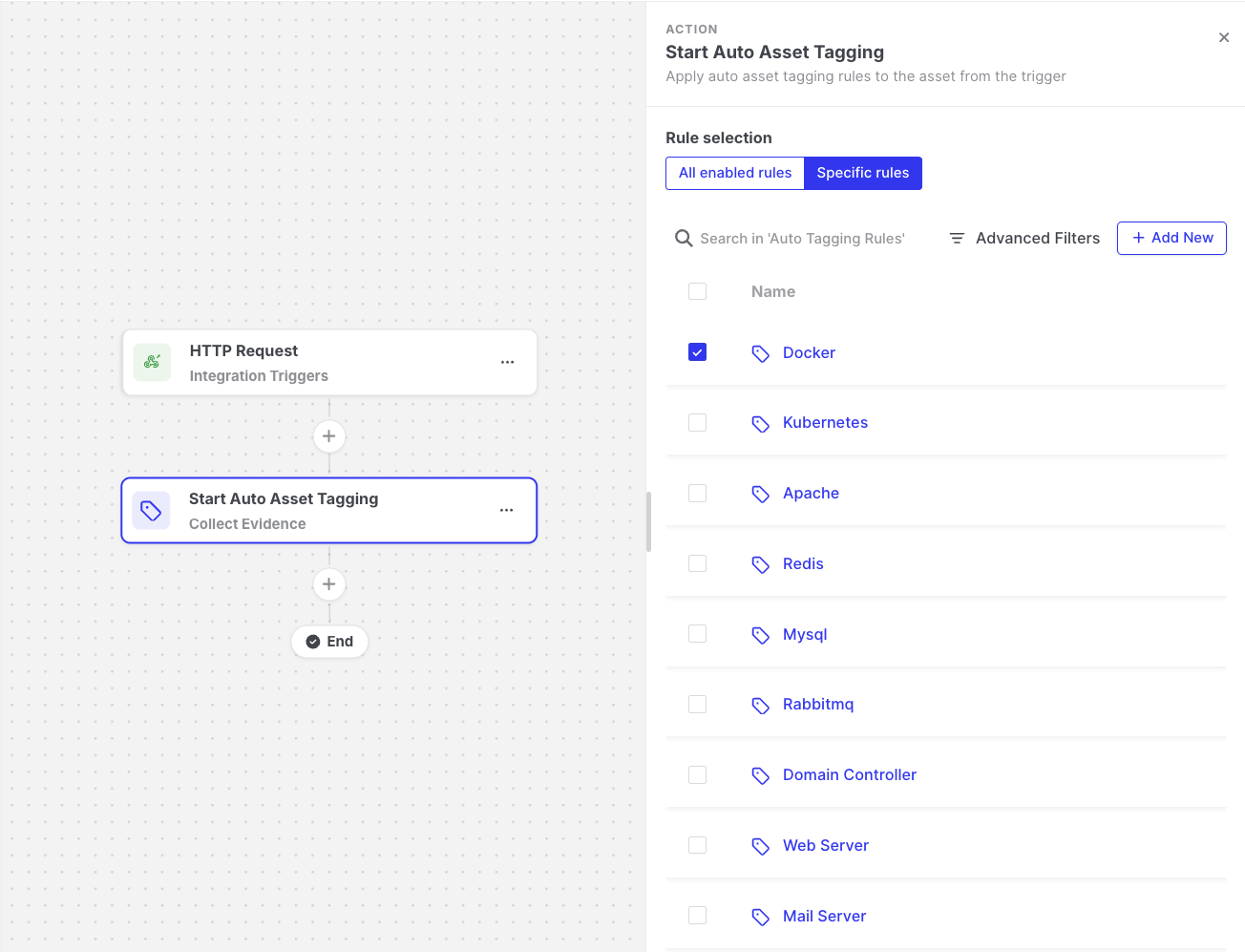
Start Auto Asset Tagging: Specific rules
How it works
Section titled “How it works”- The step finishes after AIR has evaluated the rules and applied the tags, so the tags are already in place when the next action starts. The applied tags are also available in the step output below.
- If no rule can be resolved, for example because all selected rules were deleted, the step fails.
- If the rules run but none of them matches the asset, the step still succeeds, and no tags are applied.
Output available to later steps
Section titled “Output available to later steps”| Field | Example expression |
|---|---|
| Task status and link | {{start-auto-asset-tagging.output.taskStatus}} |
| Rules that matched and the tags applied | {{json start-auto-asset-tagging.output.appliedRules}} |
Example
Section titled “Example”The Scheduled Tag Assignment template combines Scheduler and Start Auto Asset Tagging to tag assets that meet selected criteria on a regular schedule. See Templates.