

Actions
Overview
Section titled “Overview”An action is a step that performs work after the trigger, such as collecting evidence, isolating an asset, sending a notification, or calling an external system. An automation needs at least one action before you can publish it, and you can chain as many actions as you need.
Action categories
Section titled “Action categories”| Category | Actions | Use it to… |
|---|---|---|
| Collect Evidence | Start Hunt/Triage, Start Evidence Acquisition, Start Baseline Acquisition, Start Auto Asset Tagging | Run AIR tasks on the asset. |
| Incident Response | Isolate Device | Contain the asset, or release it from isolation. |
| Integrations | Send Slack Message, Send Email, Send HTTP Request, Send to SIEM | Notify people and send data to external systems. |
Adding an action
Section titled “Adding an action”You can add an action to the chain in two ways:
- Add Action menu: lists every available action, grouped by category. Use it when you know which action you need, or to browse all options.
- Add Step menu: opens directly on the canvas and shows suggested next steps, based on the previous step and common use cases. For example, after an Evidence Acquisition Completed trigger, the menu suggests actions such as Isolate Device or Send Email. Use it to build common workflows quickly.
The new action is added after the step you added it from. You can then open the action and configure its settings.
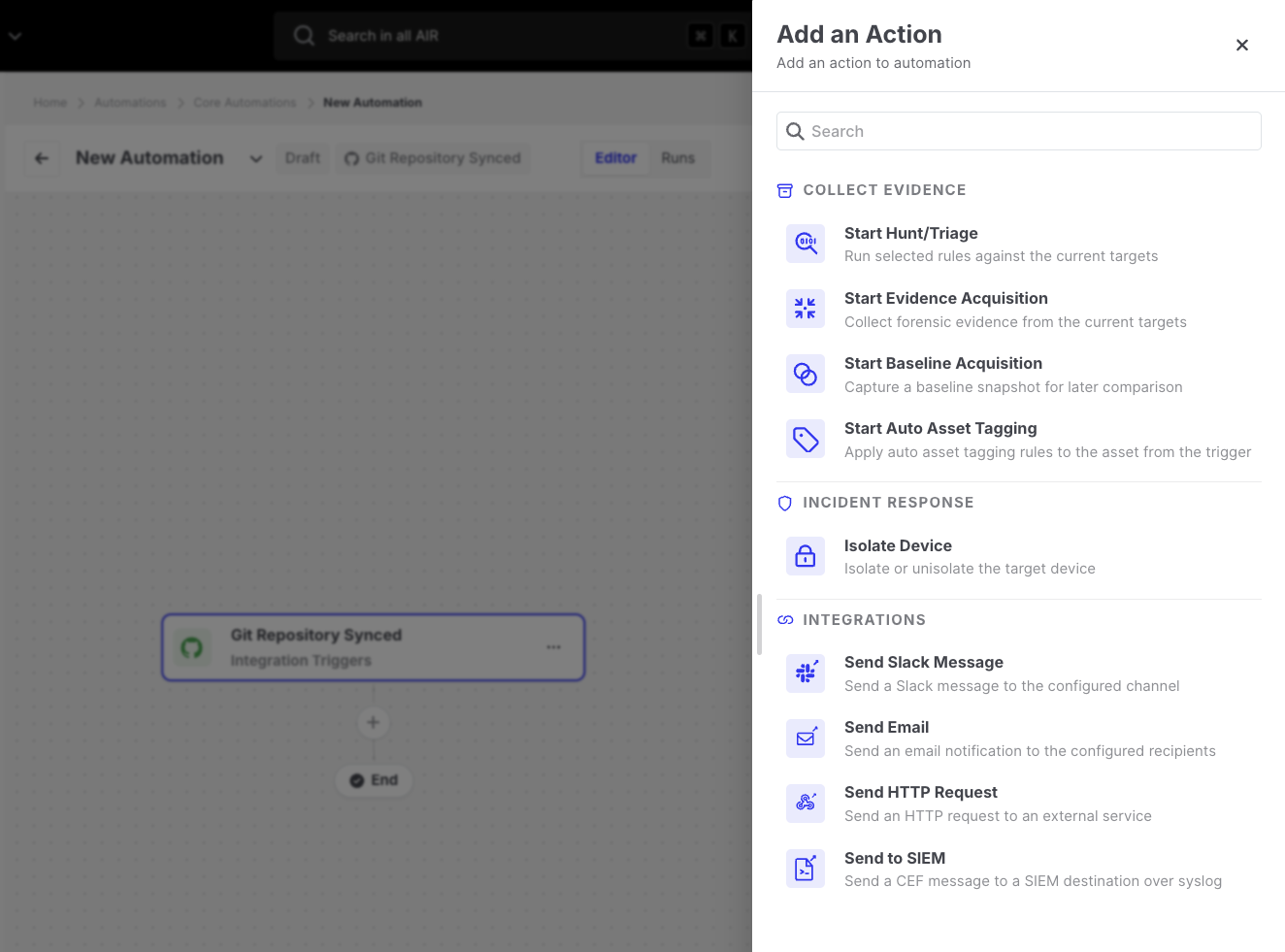
Actions: Add an action menu
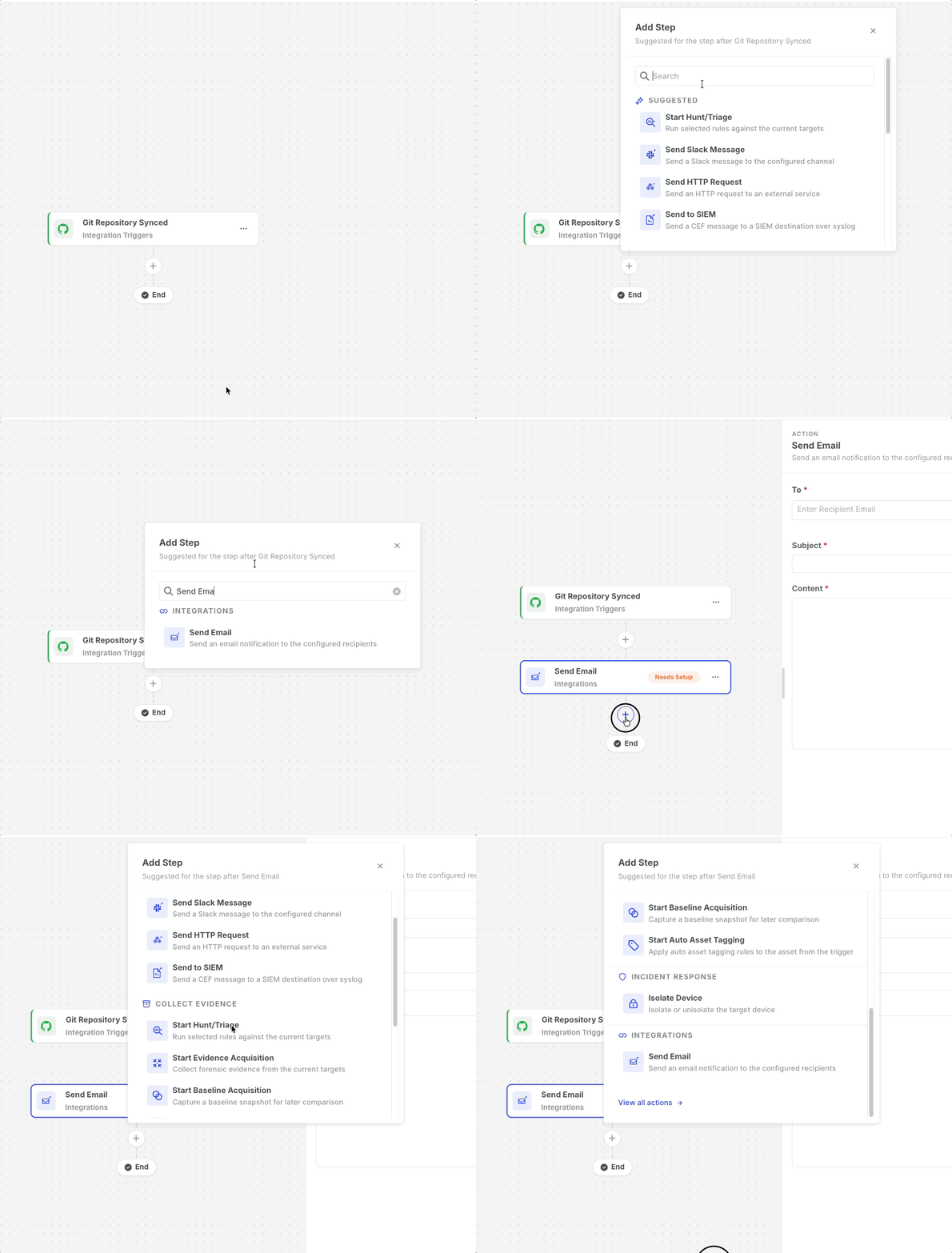
Actions: Add Step menu with suggestions
How actions run
Section titled “How actions run”Actions form a single chain. Each action waits for the previous step to finish before it starts:
Trigger ──► Action 1 ──► Action 2 ──► Action 3 (must finish) (must finish)- Notification and integration actions (Slack, email, HTTP, SIEM) finish as soon as the message or request has been sent.
- Task-based actions (Hunt/Triage, evidence acquisition, baseline acquisition, Auto Asset Tagging, isolation) start a AIR task and then wait until that task finishes on the asset. Only then does the next action start. Depending on the task, this can take minutes or hours.
Because the chain waits, later actions can use the results of earlier ones. For example, an email sent after Start Evidence Acquisition can include the number of high-severity findings with {{start-evidence-acquisition.output.findingCounts.high}}.
Each execution runs this chain for one asset. Executions of the same run progress independently of each other.
Step statuses
Section titled “Step statuses”Every step in an execution has one of the following statuses:
| Status | Description |
|---|---|
| Pending | The step has not been reached yet. |
| In Progress | The step is currently running. |
| Deferred | The step started a AIR task and is waiting for it to finish. Open the step to follow the task. |
| Success | The step finished successfully, and the next step starts. |
| Failed | The step did not succeed. The execution stops at this step and is marked Failed. |
| Canceled | The step was stopped before it finished, because the execution or run was stopped, or the automation was unpublished. |
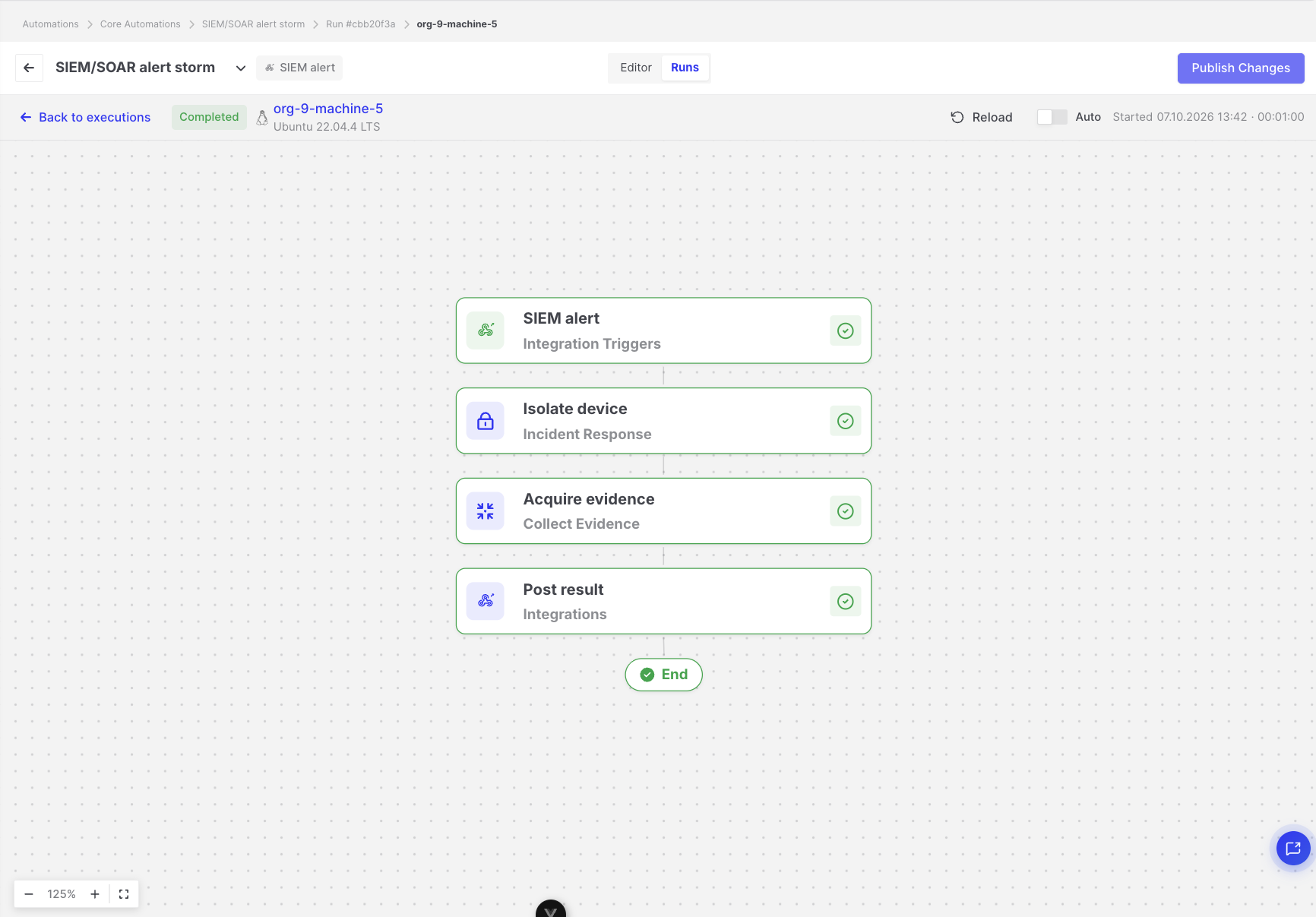
Actions: Execution details with step statuses
When an action fails
Section titled “When an action fails”If any action fails, the execution fails, and the remaining actions of that execution do not run. Nothing is rolled back: work already completed by earlier actions, such as a sent email or a started task, remains in place.
Common causes of failure include:
- The email server rejects the message, or SMTP is not configured.
- The HTTP endpoint responds with a status code outside the
2xxrange, or cannot be reached. - The AIR task started by the action fails, is canceled, or expires.
- A credential variable used by the action is missing.
To see the reason for a failure and the data the step produced, open the failed step in the execution details.
Action Blocked
Section titled “Action Blocked”If Automations become unavailable on the Console while an execution is in progress, for example because the license expires, the next action is not attempted. It is shown as Action Blocked, together with the reason, and the execution stops.
Testing actions
Section titled “Testing actions”Send Slack Message, Send Email, Send HTTP Request, and Send to SIEM have a Test button. A test sends a real message or request to the configured destination, with every template expression replaced by the word test.
Task-based actions (Hunt/Triage, acquisitions, Auto Asset Tagging, and isolation) cannot be tested, because they require an asset from a real execution.
Task-based actions and other automations
Section titled “Task-based actions and other automations”By default, tasks created by Start Hunt/Triage, Start Evidence Acquisition, and Start Baseline Acquisition do not start other automations, for example an automation that uses the Hunt/Triage Completed trigger. This prevents automation loops.
To allow a task to start other automations, turn on Trigger Other Automations on the action. Below the switch, the editor shows how many published automations the task could start; click the count to see them.
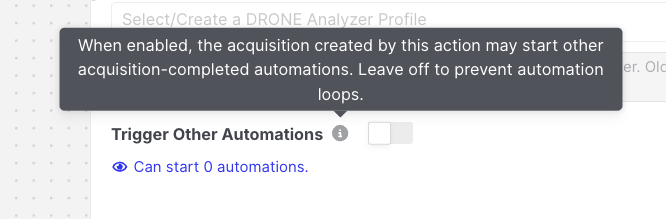
Actions: Trigger Other Automations switch