

Resetting a User Password
In AIR (Settings > User Management > Users), administrators can reset the password of a locally authenticated user who is unable to sign in.
The reset does not produce a password. It produces a single-use reset link that you share with the user out of band, such as over chat, phone, or a support ticket. The user opens the link and chooses their own password, so the new credential is never known to anyone but them.
Privileges Required
Section titled “Privileges Required”The Reset Password action is only available when all of the following conditions are met:
- Update User privilege: Your role must include the Update User privilege. Among the default roles, only Org Admin has it. See User Roles.
- Organization scope: The target user must belong to an organization your account manages.
- Local authentication strategy: The target must be a local user. Users who sign in through SSO, LDAP, or an API strategy have no AIR-managed password, so their credentials must be reset at the identity provider instead.
- Not your own account: To change your own password, use Settings > Account Settings > Change Password.
- Global Admin accounts: Only a Global Admin can reset the password of another Global Admin. An Org Admin cannot.
- User Management enabled: If the User Management feature is disabled for the Console, no user actions are offered.
If the action does not appear in a user’s row, review the conditions above before reporting an issue.
Resetting a Password from the Console
Section titled “Resetting a Password from the Console”- Open the Users page: Navigate to Settings > User Management > Users.
- Locate the user: Find the user and open the actions menu at the end of their row. The Strategy column identifies which accounts are eligible, as Reset Password is offered only for
Localusers. - Select Reset Password: Choose Reset Password from the menu.

Resetting a User Password: Reset Password row action
- Confirm the warning: The confirmation states that the user’s current password stops working immediately and that you will receive a single-use link to share. Select Reset Password to continue.
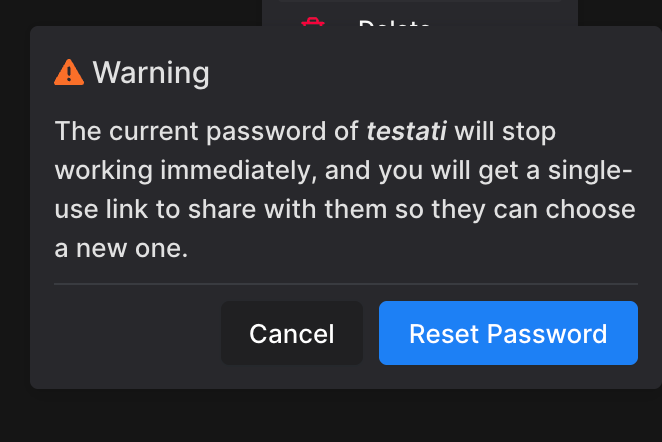
Resetting a User Password: Reset link confirmation warning
- Copy the link: The Password reset link created dialog displays the Password reset link. Use the copy button to copy it.
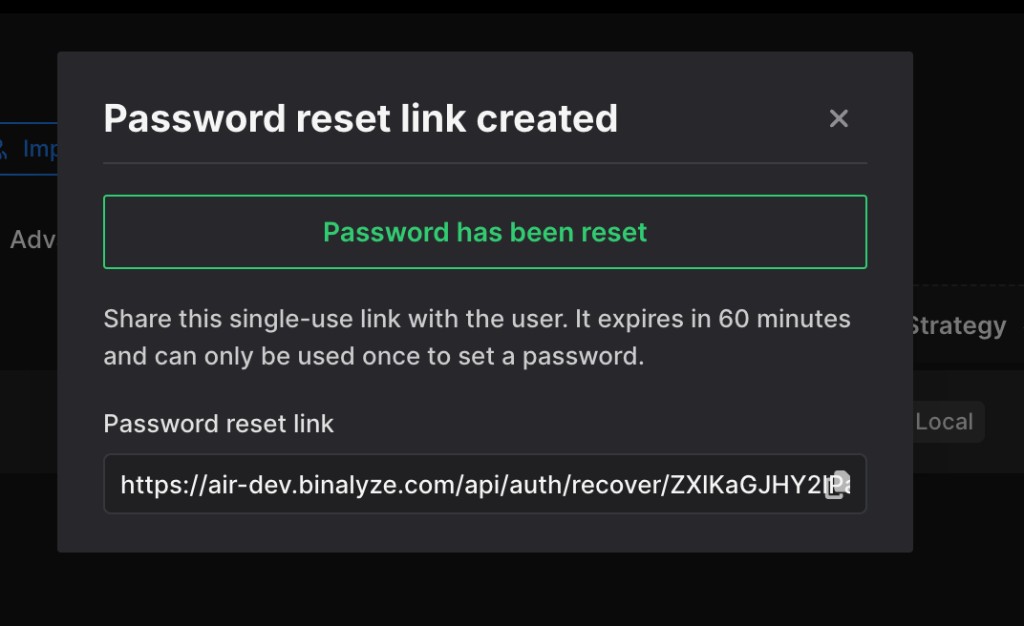
Resetting a User Password: Password reset link created modal
- Share the link: Send the link to the user through a channel you trust.
The dialog is the only place the link is displayed. If you close it before copying the link, repeat the reset to issue a new one.
Completing the Reset as a User
Section titled “Completing the Reset as a User”- Open the link: The user opens the link you shared.
- Set a new password: AIR presents the Reset Password form. Opening the link alone does not consume it, so a link previewed by a mail or chat client remains usable.
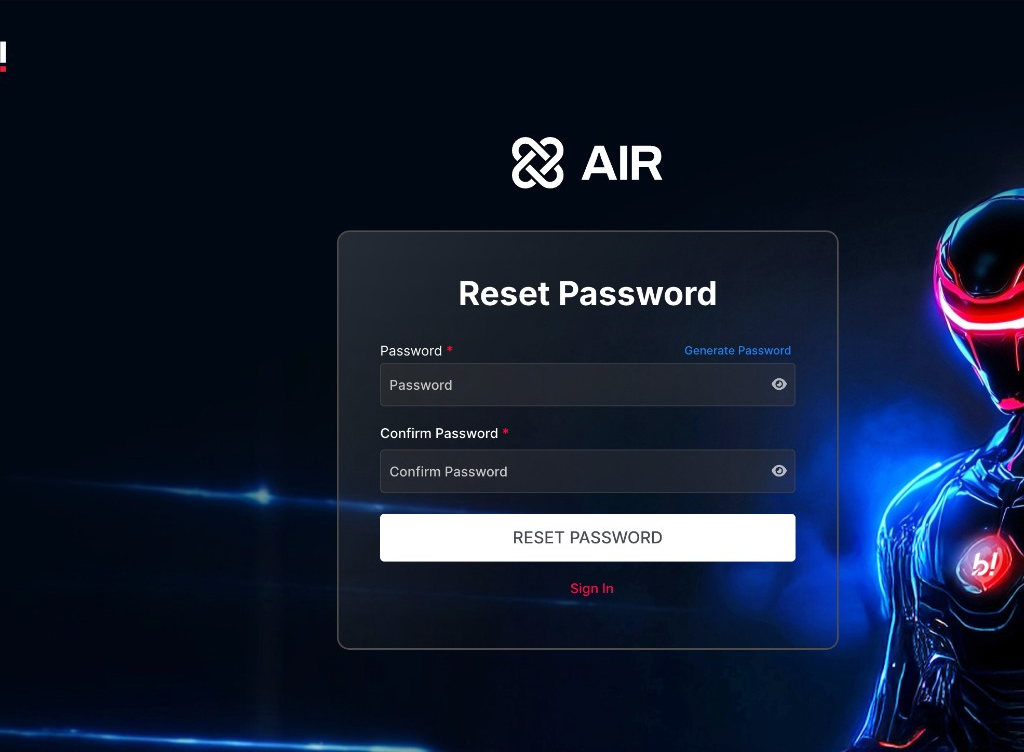
Resetting a User Password: Set a new password form
- Sign in: The user submits the new password and signs in with it.
The user is not prompted to change the password again at the next sign-in. The password set through the link is their permanent password.
Link Lifetime and Reuse
Section titled “Link Lifetime and Reuse”- Validity: The link is valid for 60 minutes from the moment it is issued.
- Single use: Once a password has been set through the link, it stops working.
- Immediate effect: The user’s existing password is invalidated as soon as you confirm the reset, before you share the link.
- Re-issuing: Resetting the password again produces a new link and revokes the previous one. Only the most recent link remains valid.
- Expired or used links: The user is informed that the link is no longer valid. Reset the password again to issue a fresh one.
Because the current password stops working immediately, the user has no access between the moment you confirm the reset and the moment they set a new password. Issue the link when you are ready to share it rather than in advance.
For self-hosted deployments, the 60-minute lifetime is set by the AIR_JWT_ADMIN_RESET_PASSWORD_TOKEN_EXPIRES_IN_SECONDS environment variable, which defaults to 3600. Restarting the Console invalidates any link that has not yet been used, in which case you must issue a new one.
Auditing
Section titled “Auditing”A complete reset produces two entries in the Console audit log:
- Password reset initiated for user “username” is recorded when you issue the link. The event is attributed to the administrator who performed the action, with Event Source set to User.
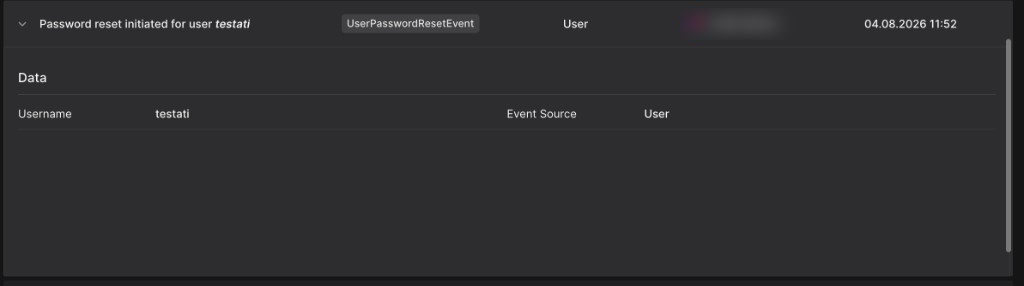
Resetting a User Password: Audit log entry for the issued link
- Password reset for user “username” is recorded when the user sets their new password. Because the user acts through the link rather than an authenticated session, the event is attributed to System and includes the IP Address the password was set from.
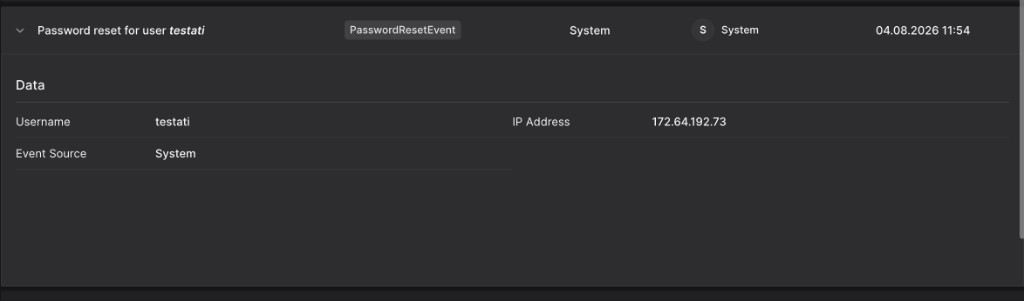
Resetting a User Password: Audit log entry for the completed reset
Together the two entries show who initiated the reset and whether the user completed it. If only the first entry is present, the link was never used. For more detail on reviewing these records, see Console Audit Logs.
Resetting a Password Without Console Access
Section titled “Resetting a Password Without Console Access”When no administrator can sign in to the Console, a password can still be reset from the server using the AIR-CLI. This path assigns a temporary password instead of issuing a link, and the user is prompted to change it at their next sign-in. Use it only as a recovery fallback.
How to reset the password of a user via the CLI?Resetting a Password Through the API
Section titled “Resetting a Password Through the API”The reset-password endpoints behave the same way as the Console action. They return the single-use link rather than a password, and they require the Update User privilege:
POST /api/public/user-management/users/:id/reset-passwordPOST /api/user-management/users/:id/reset-password
The response provides the link and the moment it expires:
{ "resetUrl": "https://CONSOLE_ADDRESS/api/auth/recover/TOKEN", "expiresAt": "2026-01-01T12:00:00.000Z"}For payload details and examples, refer to the API documentation at docs.binalyze.com.