

Hunt/Triage
Almost every case starts with one or more leads. If there are too many leads, the investigator may need to validate each one individually, which is a time-consuming process. Alternatively, if there are too few leads, investigators lack sufficient information to continue their case. Neither situation is good for the investigation and can impact the speed of resolution.
Hunt and Triage is the process of identifying and prioritizing the evidence that will be analyzed and evaluated. However, prioritizing this evidence is not a straightforward or easy job. An Investigator needs lots of data, leads, or experience to do it well. So, they generally use known attack indicators, referred to as the IOC (Indicator of Compromise). An indicator of compromise (IoC) in computer forensics is an artifact observed on a network or in an operating system that, with high confidence, indicates a computer intrusion.
An investigator or analyst will generally scan all system data or a portion of it to identify these IOCs. When they see a match, it typically means that those systems are related to a specific attack type and need to be investigated first. Investigators use YARA, osquery, and Sigma rules for these scans. Investigators can define and scan IOCs by using AIR’s built-in YARA, osquery, and Sigma template rules or editors.
The AIR DFIR Suite provides investigators with three different tools for hunt and triage, which, as stated, are YARA, osquery, and Sigma. These tools generally scan assets to find specific data using IOC (Indicator of Compromise).
AIR features a library for YARA, osquery, and Sigma rules, allowing investigators to develop, validate, and manage their rules directly within the platform using the built-in editors. These rules can be saved to Libraries > Hunt/Triage Rules in AIR.
Investigators can efficiently conduct threat hunting and scan their assets by selecting the necessary rules from the library. The Hunt/Triage process flow, depicted below, illustrates how organizational policies allow administrators to control AIR’s functionality and define role-based permissions for specific activities.
Creating a case in AIR also enables users to centralize all collections, hunt and triage results, and activities related to a specific incident or investigation. This integration allows the Investigation Hub to dynamically present all information, from raw evidence to automated DRONE findings, in a unified view.
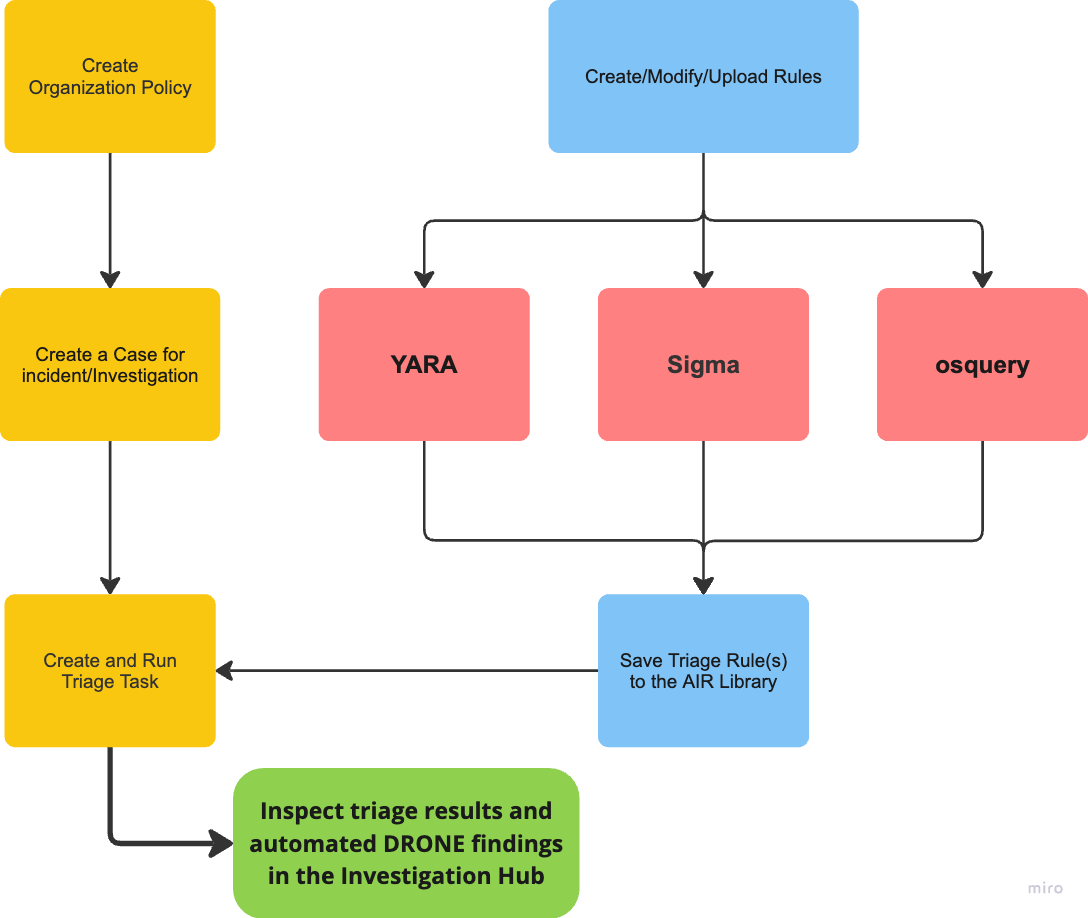
Hunt/Triage: Hunt/Triage creation and execution flows
DRONE Analyzer Profile on Hunt/Triage
Section titled “DRONE Analyzer Profile on Hunt/Triage”On the Hunt/Triage setup step, turn on Run DRONE Analysis and select a Device DRONE Analyzer Profile.
The task uses only the rules selected under that profile’s MITRE ATT&CK Scanner. Rules selected under other analyzers, and keyword lists saved on the profile, are left out of the Hunt/Triage task. YARA, Sigma, and osquery rules you select from the Hunt/Triage library still run alongside that scanner.
If the profile has no MITRE ATT&CK Scanner rules selected, the setup page warns that DRONE analysis will produce no findings.
Tagging Hunt/Triage Rules
Section titled “Tagging Hunt/Triage Rules”Hunt and Triage rules in the AIR console can be assigned tags, which help organize the rules and filter them when required. This feature for hunt and triage rules enables more efficient management and allows for streamlined searches and improved organization within the console.
When creating or using a Hunt/Triage Rule, the UI allows the user to filter existing rules by their associated Tags.

Hunt/Triage: Tagging Hunt/Triage Rules
The Hunt/Triage Rule Library includes Preset Filters in the secondary menu, allowing users to organize rules hierarchically, also known as ‘Nested Tagging’. By incorporating a colon in their tags, users can structure and categorize rules more efficiently. For example, the tag “APT26:Tim:hashset” helps organize related rules under a structured hierarchy, enhancing navigation and accessibility in the library.
Scan Local Drives Only for Hunt/Triage Tasks
Section titled “Scan Local Drives Only for Hunt/Triage Tasks”With the Scan Local Drives Only feature, users can improve Yara hunt and triage efficiency by focusing threat hunting and hunt and triage scans solely on local drives, excluding remote external or network drives that often introduce unnecessary data into the investigation. The attached mounted USB drives should be included as ‘local drives’.
Key Details:
- Available for all AIR-supported operating systems.
- Disabled by default, but can be toggled on or off via Settings > Policies > New Policies > Scan Local Drives Only. This setting can also be modified later.
- It can also be configured during the customization step when creating hunt and triage tasks via ‘Use Custom Options’.
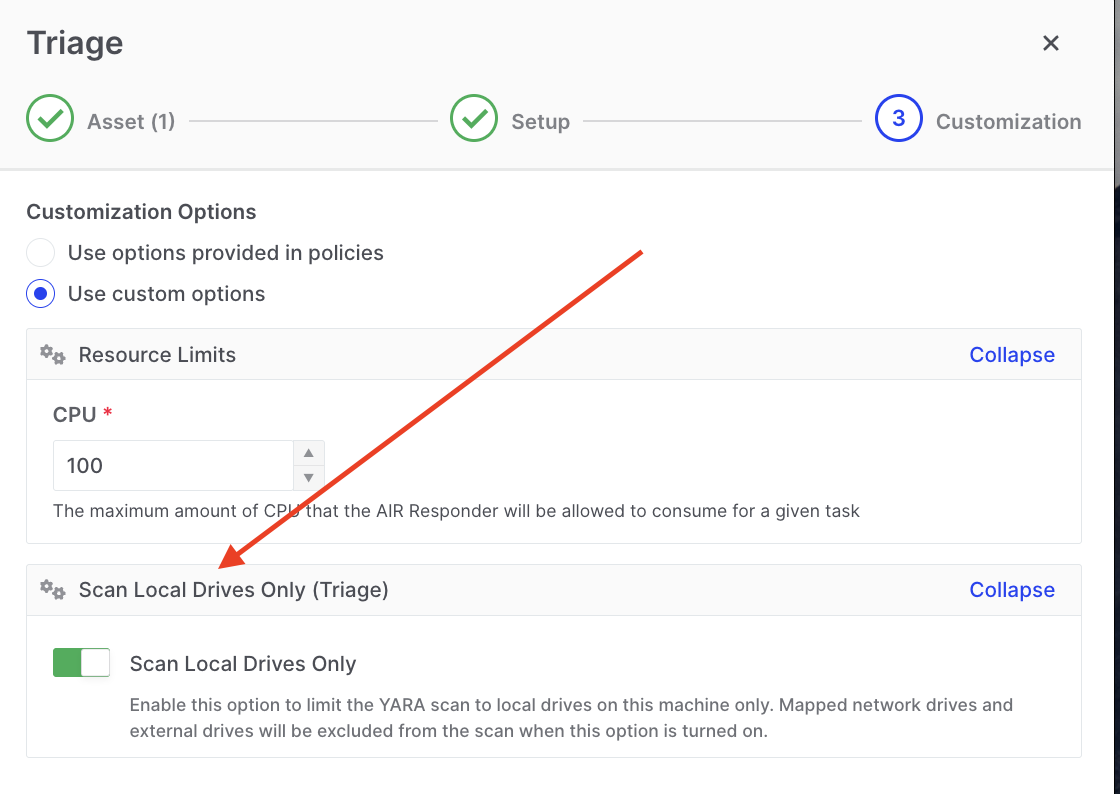
Hunt/Triage: Custom option to scan local drives only
This feature ensures that only relevant data from local drives is collected, reducing noise and improving the speed and accuracy of investigations.
Path Inclusion and Exclusion for Hunt/Triage Tasks
Section titled “Path Inclusion and Exclusion for Hunt/Triage Tasks”Hunt and Triage operations support path inclusion and exclusion rules, allowing investigators to define precisely which directories should be scanned and which should be skipped. This enables faster, more targeted investigations by focusing on high-value areas while eliminating noise from irrelevant locations.
Configuration Options
Section titled “Configuration Options”Included Path Patterns – Specify directories that must be scanned
Excluded Path Patterns – Specify directories that must not be scanned
- Separate path lists can be configured for Windows, macOS, and Linux
- Settings are applied via Hunt/Triage task custom options or Hunt/Triage policies
- If both lists are empty, the responder scans default locations as before
- If the same path appears in both lists, the rules cancel out and the path is treated as if no rule was set
Hunt/Triage: Path inclusion and exclusion custom settings
Use Cases
Section titled “Use Cases”Focus on high-value areas:
- User profiles:
C:\Users\*\AppData\Local - Temp folders and temporary files
- System and application log directories
Exclude noise-heavy locations:
- OS installation folders
- Large software repositories
- Backup or archive volumes not relevant to the investigation
Benefits:
- Faster hunt and triage execution
- Reduced false positives
- More targeted evidence coverage
Configuring Path Rules in a Task
Section titled “Configuring Path Rules in a Task”- Create or edit a Hunt or Triage task
- Select Use custom options (or advanced options section)
- Configure:
- Included path patterns – paths/directories to restrict the scan to
- Excluded path patterns – paths/directories to omit from the scan
- Use the provided Examples dropdown as a template or enter your own patterns
- Save and run the task
Configuring via Policy
Section titled “Configuring via Policy”Path patterns can be predefined in Hunt/Triage policies to ensure:
- All tasks created from the policy use consistent inclusion/exclusion logic
- Investigators follow an approved, standardized path-scoping strategy across cases
To configure via policy, navigate to Settings → Policies and define the path patterns in the Hunt/Triage policy settings.